Mobile & app settings
The Android device fleet, mobile app config (force-update, banner, support), and platform login options.
Mobile & app settings
The Android Sales App has two Super Admin surfaces:
- Devices (
/super-admin/android-devices) — a read-only fleet view: who has the app, on what phone, and what each device can honestly do (recording, tracking). - Mobile App Login (
/super-admin/settings/mobile-app-login) — platform defaults for sign-in methods, Firebase OTP, push, and the app control gate (force-update, announcement banner, support contacts).
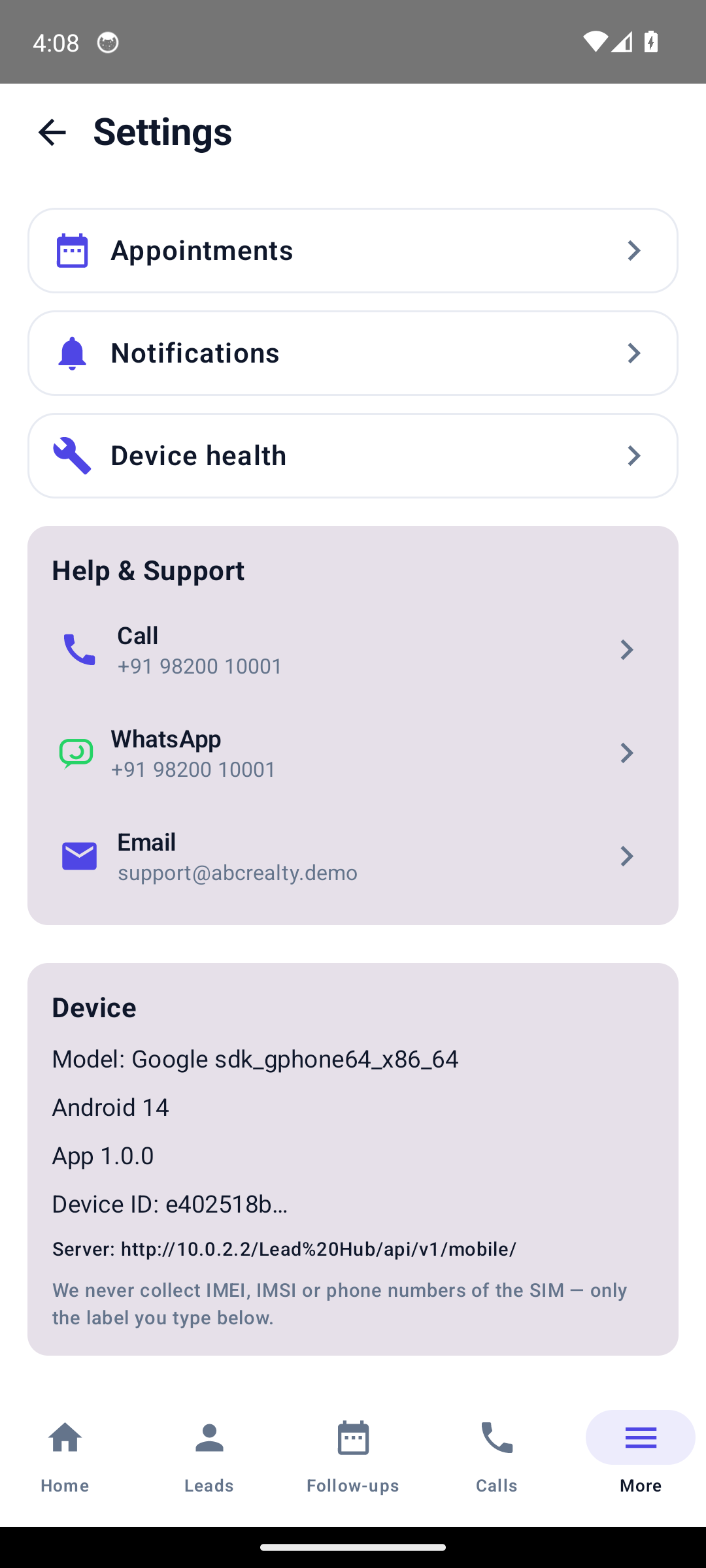
The Devices view in the CRM shows this per phone; admins never see SIM identifiers — only the model, OS, app version and a device ID.
Who this is for
Super Admins running the mobile side of the platform.
- Difficulty: Medium
- Time: 10 min
- Prerequisites: Super Admin access; for push testing, at least one agent signed in on the Android app.
Part A — The device fleet (/super-admin/android-devices)
Step 1 — Read the summary
Three counters at the top:
| Counter | Meaning |
|---|---|
| Registered devices | Every device that has registered |
| Active last 24h | Devices seen in the last day |
| Active last 7 days | Devices seen in the last week |
Step 2 — Read each device row
Rows show the business, agent, device model, OS, app version, SIM label, exclusions (device-level and workspace-level), last sync, recording mode, tracking mode, dialer package, and when the capability snapshot was last checked.
Recording modes are honest per device — never a blanket promise:
| Mode | Meaning |
|---|---|
| Native | The device can record calls natively through the app |
| Importable | Calls can be imported after the fact |
| Metadata only | Only call metadata (duration, number) is captured — no audio |
| Unknown | Capability not yet detected |
Recording is capability-based Never tell a client "all calls are recorded". The platform reports per-device capability from real snapshots; some phones can only provide metadata. The app shows the same truth to the agent on its Device Health screen (screenshot above).
Step 3 — Handle a stale device
If a device has not synced recently, that is a client-side issue: ask the agent to open the app and sync. Device-side fixes live in Mobile troubleshooting. This page is read-only.
The fleet view degrades gracefully On a fresh install with no devices yet, the page explains that devices will appear once agents install the app and sign in — it does not error.
Part B — Mobile App Login (/super-admin/settings/mobile-app-login)
This page holds the platform defaults. A workspace can override some values for itself; where it does not, these apply.
Step 4 — Choose login methods
Under Login Methods, toggle which sign-in paths the Android app offers:
- Email + Password
- Mobile Number + Password
- Email OTP (code by email — uses your SMTP configuration)
- Mobile OTP (code by SMS — uses the SMS provider or Firebase)
Turning a method off hides it in the app.
Step 5 — Configure Firebase (optional, for Mobile OTP)
The Firebase section routes mobile OTP through your own Firebase project. Fill the Web API key, Project ID, Android App ID and (optionally) Sender ID. The page includes a step-by-step guide; the Android package is com.leadhub.sales, and phone verification requires the app's signing SHA-1 to be registered.
Step 6 — Configure push (FCM)
Under Push notifications (FCM), paste the Firebase service account JSON (Firebase Console → Project settings → Service accounts → Generate new private key). The JSON is encrypted before storage; leaving it blank keeps the stored value. Use Send test push to verify — the result reports how many of how many devices were reached.
Step 7 — Set app control (force-update + banner + support)
Under App control:
| Field | Effect |
|---|---|
| Minimum app version code | Phones below this code must update before use. 0 = updates never forced |
| Latest version name | Display-only version shown in the update message |
| Update link | Where the Update button goes — Play Store or APK download URL |
| Announcement / maintenance banner | Dismissible banner on the app Home screen; blank hides it |
| Support phone / WhatsApp / email | Contact details shown in the app's Help section |
Changes reach every phone within minutes of the next app launch — no app-store update needed. In the platform defaults, the version gate and update link are platform-only; the banner and support contacts can be overridden per workspace.
Communicate outages with the banner For a holiday or a short maintenance window, set the announcement banner instead of forcing an update — it reaches every app on next launch, no rebuild required.
Expected result
Devices appear with accurate capability modes; agents can sign in using the enabled methods; pushing an announcement or a force-update gate reaches phones without an app release.
Common mistakes
- Promising call recording for every phone. Check the per-device recording mode first.
- Forcing an update without a valid update link. Users get stuck at the gate with nowhere to go.
- Changing tenant-level support contacts here and expecting a platform-wide change. These are defaults; a workspace override wins.
- Pasting partial service-account JSON. It is validated — you will see a "missing key" error.
- Forgetting Firebase SHA-1. Phone OTP fails with "app not authorized" until the fingerprint is registered.
Troubleshooting
| Symptom | What to check |
|---|---|
| No devices appear | Agents have not installed/signed in yet; the page explains this state |
| Test push reports 0 devices | No push-enabled devices found — ask an agent to open the app |
| Phone OTP fails | Firebase SHA-1 not registered, or SMS provider not configured |
| Force-update loop | Update link or latest version name wrong |
| Recording shows "Metadata only" | That is the device's real capability — see Call recording |
Technical details
- Devices page:
App\Filament\SuperAdmin\Pages\AndroidDevices(slugandroid-devices, group "Android App"); readsdevicesanddevice_capability_snapshots; recording modes NATIVE_RECORDING / IMPORTABLE_RECORDING / METADATA_ONLY / UNKNOWN. - Mobile login page:
App\Filament\SuperAdmin\Pages\MobileAuthSettingsPage(slugmobile-app-login, Settings cluster, group System); labels inlang/en/filament/mobile_login_settings.php; settings groupmobile_auth. - App config service:
App\Services\MobileApp\MobileAppConfig— groupmobile_app; platform-only keysmin_version_code,latest_version_name,update_url; tenant-overridable keysmaintenance_message,support_phone,support_whatsapp,support_email(tenants.settings.mobile_app). - App payload:
GET /api/v1/mobile/app-configreturnsapp{…},maintenance{active,message},support{phone,whatsapp,email},server_time. - Android app: Kotlin/Compose, package
com.leadhub.sales; demo APK for UI review — see Demo APK.
Related guides
Was this page helpful?
Thanks — noted. ✦