Sales Agent
The agent's full loop — receive a lead, open Lead 360, call, log the outcome, follow up, move the stage, book a meeting and message on WhatsApp, on desktop and Android.
Sales Agent
You hold the member role — the person on the phone. Your job in the CRM is one loop, repeated:
open the lead, call, log what happened, set the next step, move the stage.
Who this is for
Sales agents working leads in a business workspace, on desktop (/admin) or the Android app.
You do not configure anything — if something is missing, ask your manager.
Your day, start to finish
1. Receive the lead
- A new lead arrives by push notification (mobile app) or appears in your Leads list.
- If your workspace uses round-robin assignment, it is already yours. If not, your manager assigns it — check Leads → filter by assigned to you.
2. Open Lead 360
- Sidebar → Leads → click the lead (or open it from a follow-up).
- The detail page is the Lead 360 view: contact details, source, stage, owner, the full timeline (notes, calls, WhatsApp, tasks, stage history), and the next-best-action hints.
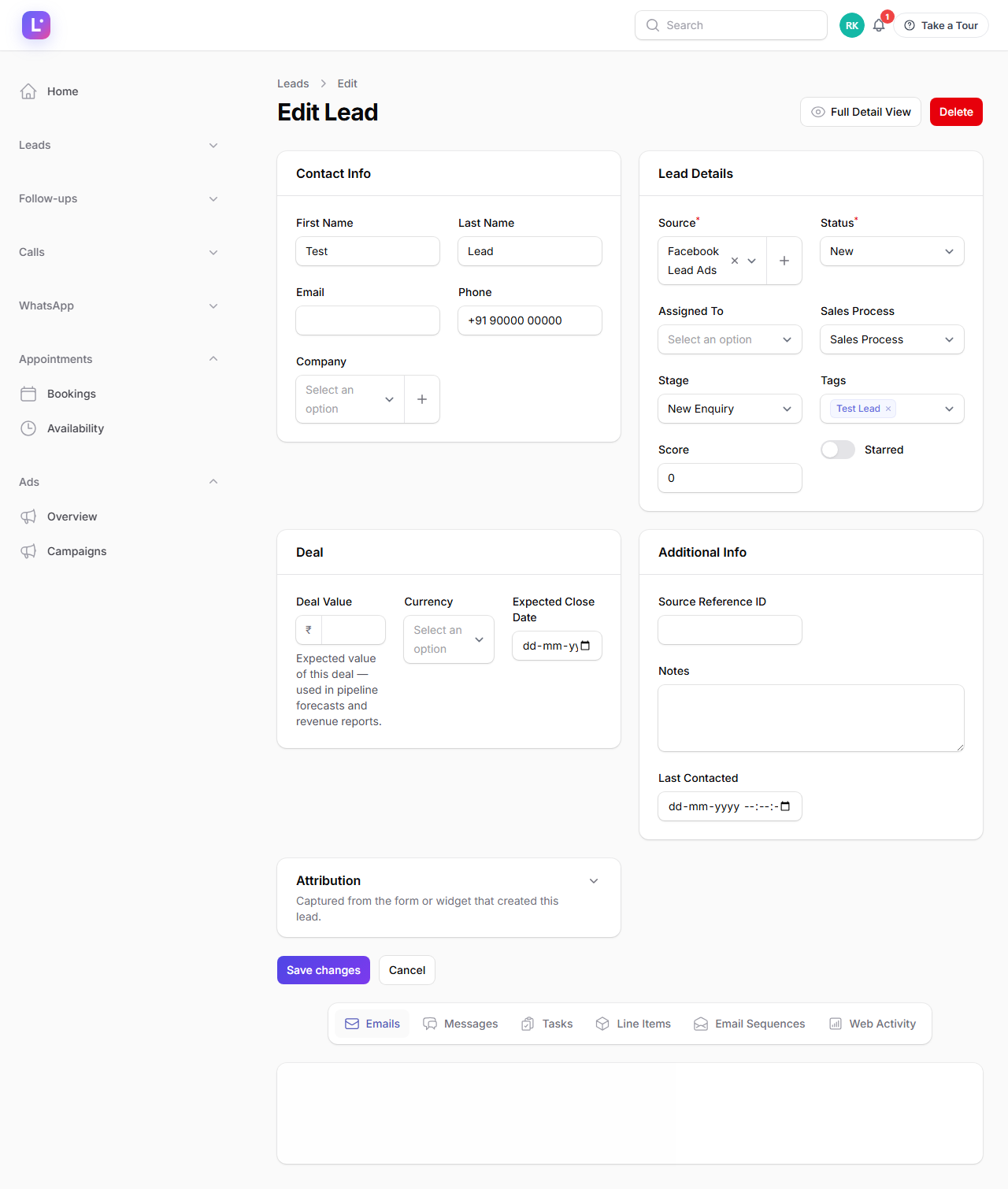
3. Call the lead
- Click Call lead on the lead — click-to-call rings your phone first, then bridges to the customer. (Make sure your profile has your correct phone number.)
- On the mobile app the call opens in your dialer; supported devices can report call capabilities and, on some devices, import recordings — see Calling from the CRM and Call recording & what your phone supports.
4. Log the result (never skip this)
- Back on the lead, click Log call.
- Fill direction, duration and Outcome — Connected, Left Voicemail, No Answer, Not Interested, or Requested Callback.
- Add a one-line note you would want to read next week.
Expected result: the call appears on the Lead 360 timeline and counts in every report.
5. Create the next follow-up
- On the lead, click Create task (a follow-up).
- Set title, due date, priority and reminder.
- For a "call me later" outcome, set the date the customer asked for — not tomorrow by default.
Expected result: the task appears in Follow-ups, on your dashboard and in your mobile app. Nothing gets remembered in your head.
6. Move the stage
- Click Move stage, pick the pipeline and the new stage (e.g. Contacted → Interested).
- When they buy: Mark won with the final amount. When they say no: Mark lost with a genuine lost reason — that reason is what management actually learns from.
7. Book the appointment (when relevant)
- If the lead wants a meeting, create it from the appointment/calendar area (or your manager's configured booking flow). Appointments you own show on Calendar and in the mobile app.
8. WhatsApp follow-up
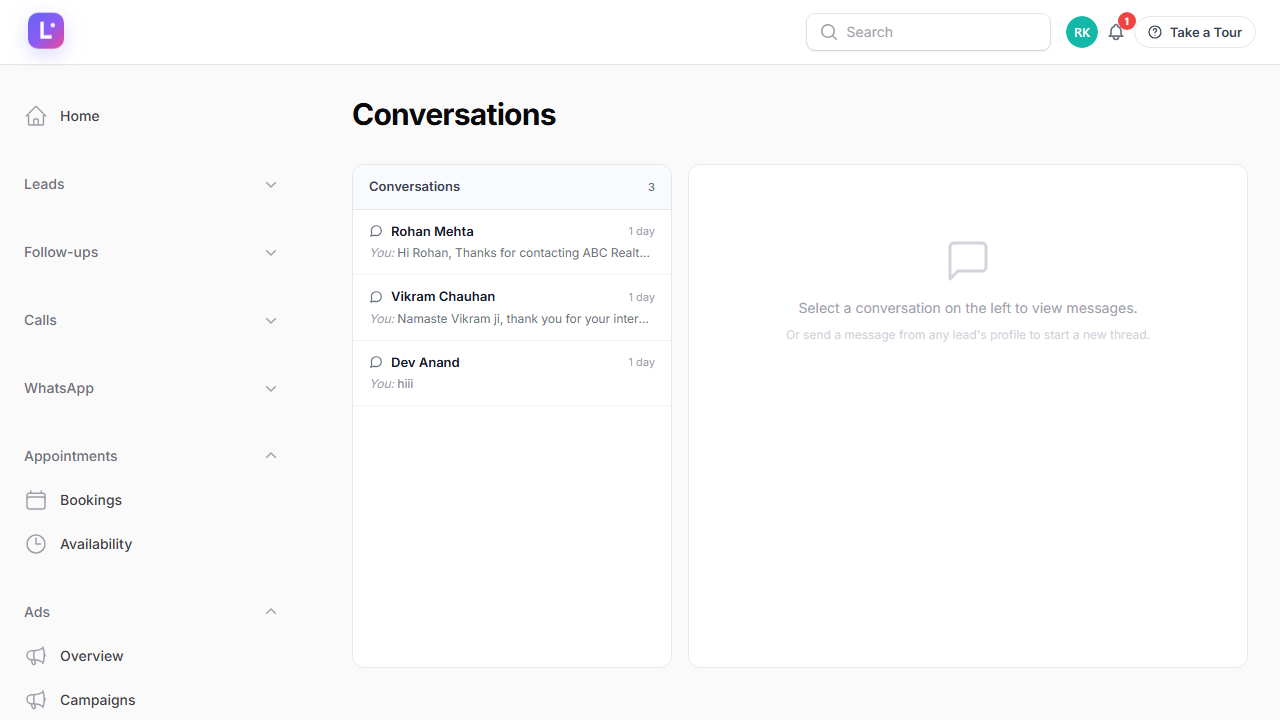
- Click Send message on the lead (channel: WhatsApp), or Open conversation to continue in the shared WhatsApp inbox.
- Inside the 24-hour customer-service window you can write freely; after it closes, send an approved template instead — free-form messages will fail.
Working from the Android app
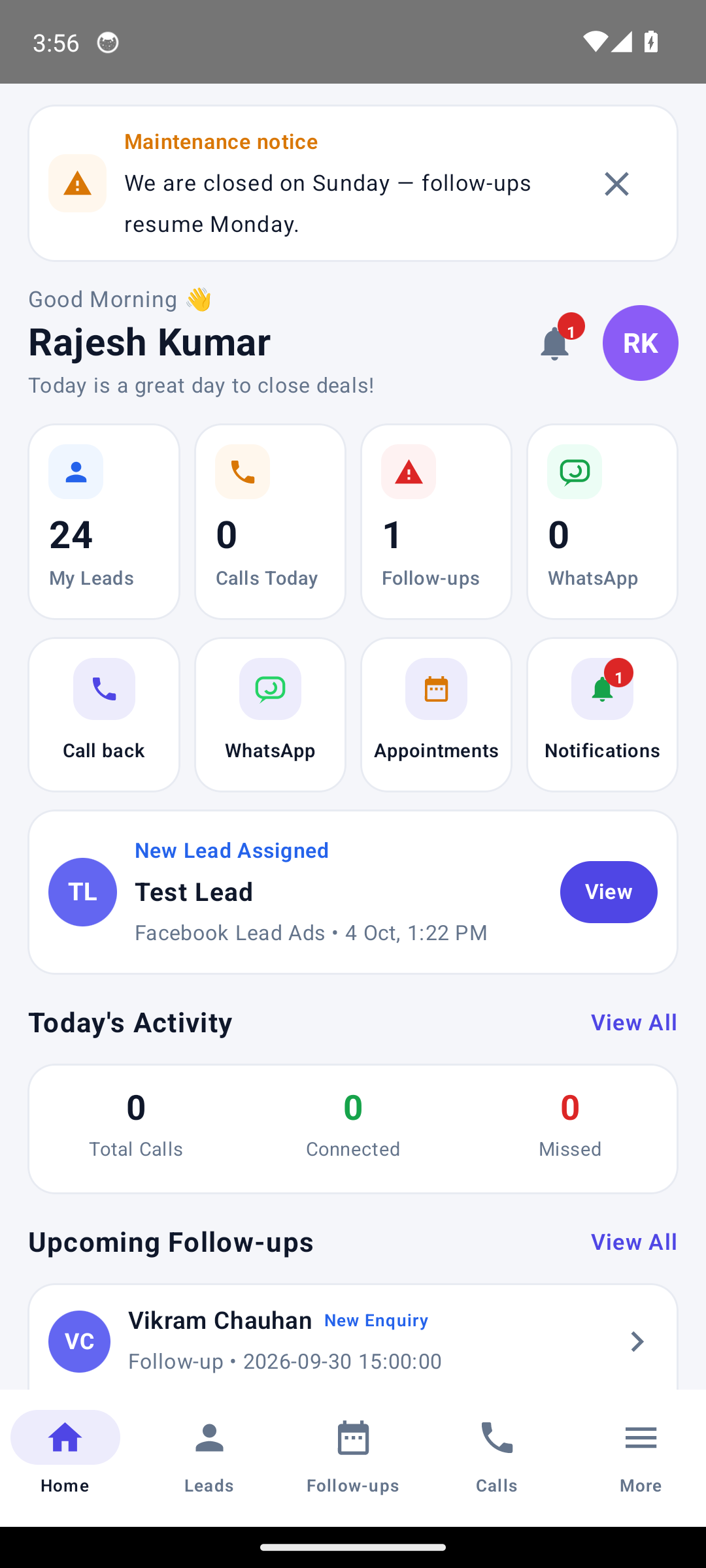
The app (com.leadhub.sales) mirrors the loop with a mobile-first UI:
- Sign in with your workspace credentials or OTP (the methods your workspace enables).
- Leads — your list with search, stage and follow-up actions.
- Call — tap to dial, then log the outcome; the call lands on the same Lead 360 timeline.
- Offline queue — no signal in the field? Actions queue locally and sync when you reconnect.
- Device health — check permissions, sync state and call capabilities honestly.
More: Offline queue & syncing · Push notifications.
What you can and cannot do
| You can | You cannot |
|---|---|
| View, create, edit and assign leads | Delete, import or export leads |
| Log calls, notes, tasks and appointments | Change pipelines, forms or automations |
| Send WhatsApp messages and view threads | Manage templates, the WhatsApp connection, or view logs settings |
| View reports | Export reports or change settings/team/billing |
| Move stages, mark won/lost | Open the Ads tools, Billing, or workspace Settings |
Speed wins deals Response time is measured from lead arrival to your first logged activity. Log the call the moment it happens — a call that is not logged counts as "no response".
Common mistakes
- Calling without logging. The lead looks untouched; reminders and reports go wrong.
- Setting every follow-up to "tomorrow". Use the date the customer actually asked for.
- Marking lost without a reason. The reason field is the only structured feedback the business gets from a lost deal.
- Messaging an opted-out lead. If a customer sent a STOP keyword, respect it — the CRM flags it on the lead.
- Re-sending an old template to beat the 24-hour window when a new one is required. Meta rejects it; pick a current approved template.
Technical details
- Member permissions:
leads.view/create/edit/assign,pipeline.view,forms.view,automations.view,integrations.view,reports.view,whatsapp.view/send. - Call outcomes map to
outcome_connected,outcome_voicemail,outcome_no_answer,outcome_not_interested,outcome_callback. - The mobile app talks to
/api/v1/mobilewith a device token; the same tenant scope protects every record you can see.
Related guides
Was this page helpful?
Thanks — noted. ✦