Calls
Log, review and analyse every call — outcomes, durations, recordings where your phone supports them, and AI summaries.
Calls
The Calls screen is the record of every conversation your team has with leads: who called whom, when, for how long, and how it ended. Calls enter the CRM from the click-to-call flow, from the Android app, and from manual Log call on Lead 360.
Who this is for
-
Sales agents — check history before dialling; log calls you made elsewhere.
-
Managers — coach from real numbers: connect rates, durations, outcomes.
-
Admins — understand what the phone system records and for how long.
-
Difficulty: Medium
-
Time: 10 minutes
-
Prerequisites: The
callsplan feature. Voice calling inside the CRM needs voice switched on and a phone number on your profile; the Android app adds device calling.
How calls get into the CRM
- Click-to-call — the Call action on a lead or task opens your dialler / softphone (
tel:link). When your business has voice enabled, calls can be placed in-app through the configured voice provider. - Android app — the mobile app detects calls to CRM numbers and records the outcome; on phones that support it, the call recording and/or its metadata is uploaded afterwards (see below).
- Manual log — for calls made on your personal phone: open the lead → Log call → direction, duration, outcome, notes.
Log the outcome, not just the call Outcomes are what reports and automations use. Connected, Voicemail, No answer, Not interested, Callback — pick honestly; "connected" on a call that never happened corrupts every response-time report.
Steps
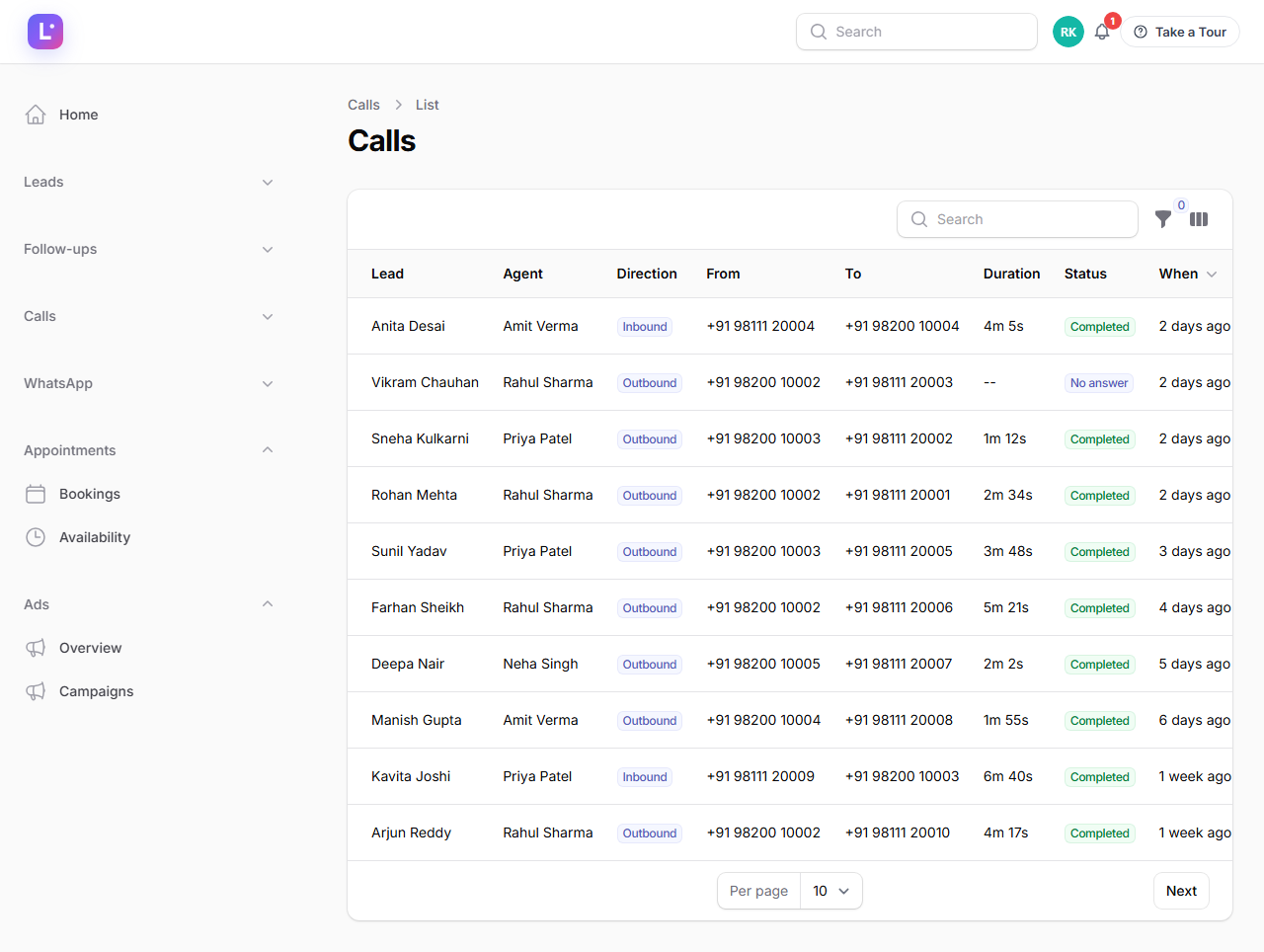
1. Review the call list
- Open Calls → Calls (
/admin/lead-calls).
Expected result: the list of calls, newest first. There is deliberately no "New call" button here — calls are created by the calling flows so that a call record always has a real source; use Log call on the lead instead.
2. Open a call
- Click a call to open its details:
- The lead (clickable), the agent, direction, status, from/to numbers, duration and start time.
- Recording — a player appears when a recording exists: either a cloud recording from the voice provider or a recording uploaded from the agent's phone, streamed through a protected per-business route.
- AI section — call summary, transcription and analysis, when available; otherwise a plain "not available" note.
Expected result: you hear/read exactly what happened on the call, without leaving the CRM.
3. Configure voice calling (admin)
- Open Settings → Communication and review the messaging/voice options for your business.
Expected result: with voice enabled, the Call lead action appears on leads for users who have a phone number on their profile.
4. Understand recording capability honestly
- On Android, open the app's Device Health screen.
Expected result: the app reports the recording capability of your specific device, one of:
| Capability | What it means |
|---|---|
| NATIVE_RECORDING | The call can be recorded in-app automatically. |
| IMPORTABLE | A recording exists on the device (e.g. via the phone's own recorder) and can be imported into the CRM. |
| METADATA_ONLY | Only the call's details (number, time, duration, outcome) are captured — no audio. |
Recording is per-device, not universal Most Android phones do not allow third-party call recording. The CRM tells the truth per device instead of pretending. If you need guaranteed recording, verify your phone models first via the app's Device Health screen.
5. Call retention
- Recordings are kept for 30 days, then automatically deleted (privacy by default).
Expected result: the call record and its outcome remain in the CRM permanently; only the audio is purged.
Expected result
Every lead conversation has a durable record with outcome and duration; managers can report on calling activity; recordings exist where the hardware allows and are purged on a privacy-preserving schedule.
Common mistakes
- Never logging calls made outside the CRM. The lead's history — and the response-time reports — go blind. Use Log call.
- Expecting recordings on every phone. Check Device Health first (above).
- Using the wrong outcome. "Not interested" vs "call back later" changes automations and reports.
- Deleting call records. Keep them; they are history. Recording audio auto-purges anyway after 30 days.
Troubleshooting
| Symptom | Fix |
|---|---|
| No Call lead button | Voice is off for your business, or you have no phone number saved — see Calls & recording issues. |
| Recording section empty | The call was metadata-only (device capability), or a cloud recording is still processing. |
| Android call not appearing | Check the app's offline queue & sync and the Device Health screen. |
| AI summary missing | Transcription needs a configured AI/voice key (Whisper or Deepgram) — ask your admin; the rest of the call record is unaffected. |
Technical details
- Screen:
App\Filament\Resources\LeadCallResource(group Calls, plan featurecalls), modelApp\Models\LeadCall(lead_callstable). LeadCallsources:SOURCE_CLOUD = 'cloud'(provider / in-app) andSOURCE_SIM = 'sim'(device). Manual logs from Lead 360 are written withsource = cloud,status = disposition = outcome,duration_seconds.- Recording playback: a
ViewField— either the provider's cloud URL, or a device-uploaded file streamed through the tenant-protected route. - Mobile: call-events and multipart recording uploads via the mobile API (
call-events,recordingsendpoints); the capability engine isNATIVE_RECORDING/IMPORTABLE/METADATA_ONLYper device, visible in Device Health. - Retention:
leadhub:purge-recordingsruns daily at 03:15 and removes recordings older than 30 days (call rows stay).
Related guides
- Lead 360 view — log and review calls in context.
- Mobile app: calling — how the Android dialler integrates.
- Mobile app: call recording — capability details per device.
- Follow-ups & tasks — calls usually come from a task.
- Reports — response time and team performance.
Was this page helpful?
Thanks — noted. ✦