Businesses (tenants)
Create, manage, suspend and impersonate client workspaces from the Super Admin panel.
Businesses (tenants)
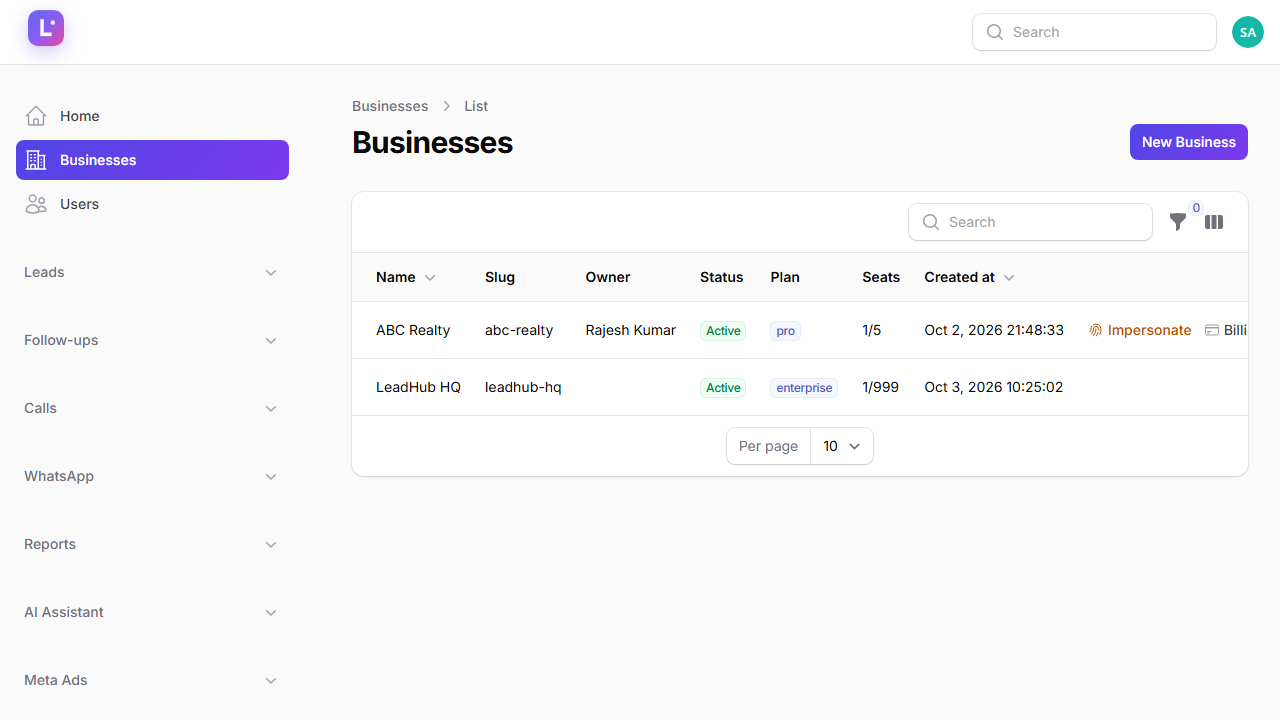
Every client on the platform is a business (internally a tenant). The Businesses screen at /super-admin/tenants is where you create them, hand over the admin login, watch subscription state, and — when needed — suspend or impersonate one.
Who this is for
Super Admins. Creating a business also creates that client's admin user, so read the hand-over options carefully.
- Difficulty: Medium
- Time: 10 min
- Prerequisites: Super Admin access, and the client's admin name + email ready.
Create the business from here, not inside /admin There is no "New business" button in the client panel. The Super Admin create form is the only place a workspace (and its owner) is created. For the full end-to-end order of operations, follow the Client delivery playbook.
Step 1 — Create a business
- Open Businesses → click New business (top right).
- Fill Workspace Details:
- Name — the client's company name. The URL slug and subdomain are auto-filled from it; you can override the slug (reserved words are rejected).
- Max seats — the hard cap on team members (default 5).
- Plan — pick the plan the client is on. Choosing a plan auto-fills Trial ends at from the plan's
trial_days. - Subscription status — Trial / Trial expired / Active (paid) / Cancelled / Expired. Leave it on the default at creation; it is normally driven by the lifecycle jobs afterwards.
- Fill the Tenant Admin section — this creates the client's first user:
- Admin name and Admin email.
- Password setup — choose one:
- Email the admin a setup link (recommended) — the admin receives a welcome email with a
/admin/password-setup/{token}link and sets their own password. - Auto-generate + show here — a random 16-character password is generated and shown to you once.
- Set password now — type a password (at least 10 characters) and pass it to the admin securely.
- Email the admin a setup link (recommended) — the admin receives a welcome email with a
- Click Create. The workspace is created, the admin user is created with the tenant admin role and set as owner, and the first-login onboarding wizard is marked pending.
- Hand over the login details (or the password-setup email flow) to the client.
Let the client set their own password The email setup link is the safest option — no password ever passes through chat or email in plain text.
Step 2 — Read the businesses table
Each row shows:
| Column | Meaning |
|---|---|
| Name | Business name |
| Slug | Workspace URL identifier |
| Owner | Owner name and email |
| Status | Derived subscription state: Active / Trial / Trial expired / Cancelled / Expired / Suspended |
| Plan | Current plan |
| Seats | Used / maximum |
| Trial ends / Sub ends | Key dates |
Suspension is not the same as subscription status The Suspend button (row action) sets the workspace inactive. The status field on the edit form is for subscription state. The form explicitly tells you: "Suspension is set via the Suspend button — not here."
Step 3 — Use the row actions
| Action | What it does | Notes |
|---|---|---|
| Impersonate | Logs you in as the workspace owner and takes you to /admin |
Visible when the business has an owner. An impersonation bar stays pinned on screen with a Stop button |
| Billing | Opens the commercial agreements for this business | Hidden for LeadHub HQ |
| Onboarding | Opens the Business 360 onboarding detail for this client | Hidden for LeadHub HQ |
| Suspend | Deactivates the workspace after a confirmation with a reason | Hidden for LeadHub HQ. Sends WorkspaceSuspendedMail to the owner; client users are bounced to /admin/subscription-required |
| Reactivate | Re-activates a suspended workspace | Shown when the workspace is inactive |
| Edit | Opens the edit form (details, admin, WhatsApp diagnostics) | — |
Impersonation is audited and powerful Starting an impersonation writes impersonation.started to the audit log, invalidates the previous session, and signs you in as the client owner. Everything you do afterwards is recorded as that user would do it. Always click Stop in the impersonation bar when you are done.
Step 4 — Inspect WhatsApp health from the edit form
On an existing business, the edit page has a read-only WhatsApp diagnostics section: connection status, verified name, display phone, WABA ID, last webhook time, automation and template counts, messages sent today and failures. Use it to answer "is this client's WhatsApp healthy?" without logging into their panel.
Expected result
The business exists in the Businesses list, its admin can log in at /admin, and the row shows the correct plan, seats and status. Impersonation and suspension work from the row menu.
Common mistakes
- Creating the same business twice. Slugs are unique — a duplicate name usually fails on the slug. Search the list first.
- Expecting "Create user" on the Users page. The owner is created here; the Users page has no create action (see Users & agency team).
- Using subscription status to lock someone out. Use Suspend; the status field is informational.
- Suspending the wrong workspace without a reason. The confirmation stores the reason; always write a clear one.
- Forgetting to press Stop after impersonating. The banner is deliberately visible on every page.
Troubleshooting
| Symptom | What to check |
|---|---|
| Admin never received the setup email | SMTP may not be configured — see Email & SMTP and the setup checklist on the dashboard |
| "…is reserved" on save | The slug uses a reserved word; pick another |
| Client still sees the app after suspension | Their current session ends on the next request; enforce re-login |
| Impersonate not offered | The business has no owner user attached |
| Business not visible in the list | Check filters (suspension, plan, status) — the list is filterable |
Technical details
- Resource:
App\Filament\SuperAdmin\Resources\TenantResource; UI labels inlang/en/filament/sa_tenants.php. - Model:
App\Models\Tenant(tenantstable); "LeadHub HQ" is marked bysettings.internal.crm_hqand provisioned byphp artisan leadhub:setup-hq-crm. TenantResource::impersonateAction(),onboardingAction(), suspend/reactivate actions live on the resource; suspend sendsApp\Mail\WorkspaceSuspendedMail, disablesactive, and writes audit tagstenant-management,impersonation.- Creation:
App\Filament\SuperAdmin\Resources\TenantResource\Pages\CreateTenant— attaches theadminrole, setsowner_id, seat count 1, callsTenantOnboardingService::markPending(), audittenant.created_by_sa. - Status derivation:
App\Support\TenantSubscriptionState. - Subscription enforcement: tenant-side
EnforceSubscriptionmiddleware →/admin/subscription-required.
Related guides
Was this page helpful?
Thanks — noted. ✦