Your first login
Sign in as the business owner, understand the guided setup wizard, change your password, and find help — in the first ten minutes.
Your first login
You are the owner (or admin) of a new workspace. The platform team created your Business and sent you a welcome email — this page gets you signed in, secured and pointed at the guided setup.
Who this is for
Business owners and workspace admins on their first sign-in. Sales agents: sign in the same way, then read the Sales Agent guide — the setup wizard is owner-only.
Prerequisites: the welcome email from the platform team (it contains your login email and either a temporary password or a one-time password-setup link).
Step 1 — Sign in at /admin/login
- Open your workspace login page — for a hosted install this is
https://<your-crm-domain>/admin/login; on the local XAMPP test install it ishttp://localhost/Lead%20Hub/admin/login. - Enter your email and password, then submit.
- If the email says "set your password", open the one-time link first
(
/admin/password-setup/<token>) and choose a password, then sign in.
Expected result: you land on the Home dashboard with a greeting and a summary of your day.
Locked out? 5 failed attempts → 15 minute cooldown The login page locks after 5 wrong attempts for 15 minutes (tracked in cache and a login_attempts table). Wait it out or ask the platform team to reset your password. If you are on the Super Admin login page by mistake, the page banner links to the correct /admin/login.
Step 2 — The first-time welcome and setup chip
On your first visit you will see a short welcome modal, and a Setup NN% chip in the topbar. They both point at the same thing: the guided setup wizard.
- Dismiss the welcome modal (or click through its first steps).
- Note the Setup chip — it stays in the topbar until onboarding is complete.
- Explore freely first if you like: the wizard never punishes you for looking around.
Expected result: you know where the Setup chip is. It is your home base for the rest of setup.
Step 3 — Start the guided setup wizard
- Click the Setup chip (or the dashboard welcome banner) to open
/admin/guided-setup. - The wizard walks 12 client steps in order: Business details → industry → Connect Meta → Page & Ad Account → Lead forms → sales process → lead assignment → follow-up setup → team → WhatsApp → mobile app → test lead.
- Progress is computed from real backend state, not clicks — a step turns done when the data behind it exists.
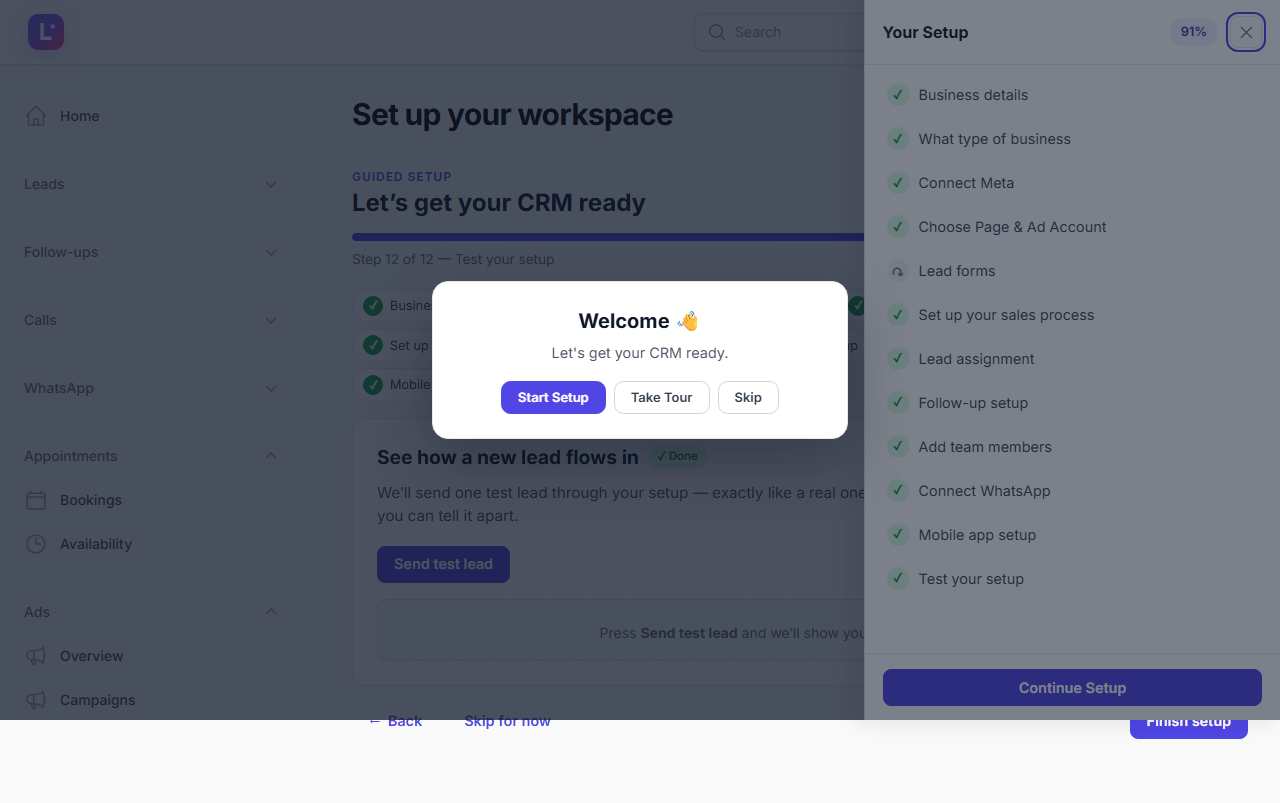
Expected result: the first step opens. You can stop at any point; closing the wizard keeps your progress.
Only the required steps block completion Required steps (business, industry, Meta connect, page/ad account, lead forms, sales process, routing, follow-ups) must be settled; team, WhatsApp, mobile and the test lead can be skipped for now. Skipped steps stay visible to the platform team so nobody forgets them. Full walkthrough: Client onboarding from zero.
Step 4 — Secure your account
- Open the user menu (top-right avatar) → My Profile (
/admin/profile-page). - Check your name, email and phone. The phone number matters: click-to-call rings your phone first, then bridges to the customer.
- Set your timezone and, if you want the interface in another language, your language.
- In the Change password section, enter your current password and a new one.
Expected result: a "Profile updated" / "Password changed" confirmation, and the topbar shows your name.
Optional hardening on the same screen group: Two-factor setup (authenticator app) and Sessions — where you can review and end other active sessions. Enable 2FA if the platform team asks you to; some installs enforce it.
Step 5 — Know where help lives
| Help surface | Where |
|---|---|
| Guided setup | Topbar Setup NN% chip → /admin/guided-setup |
| Guided tours | Take a Tour in the topbar — four role tours incl. a first-time client tour |
| Help Center articles | /admin/help |
| Ask the team | Help & Support → Contact Support / Chat with our team |
| This documentation | /docs (search with Ctrl/⌘ + K) |
Expected result: you can always get unstuck without leaving the product.
Common mistakes
- Using the wrong login page. Your account lives on
/admin/login;/super-admin/loginand/agency/loginare for platform and agency staff. - Changing your email before verifying. A changed email may need verification again; if mail is not configured you will be signed out on next login. Ask the platform team first.
- Skipping the phone number in your profile. Click-to-call has nowhere to ring.
- Treating the first login as the whole setup. The wizard is the setup; the dashboard is empty until at least Meta and the sales process are done.
Technical details
- Tenant panel login page:
App\Filament\Pages\WhiteLabelLoginatfilament.admin.auth.login; lockout 5 fails → 15 min. - The wizard is
App\Filament\Pages\GuidedSetup(slugguided-setup), backed bybusiness_onboarding+_stepstables andApp\Support\OnboardingSteps::CLIENT_STEPS. - Profile:
App\Filament\Pages\ProfilePage; 2FA:TwoFactorSetup; sessions:SessionsPage. - Help Center:
App\Filament\Pages\HelpCenterPage(slughelp).
Related guides
Was this page helpful?
Thanks — noted. ✦