Lead 360 view
Everything about one lead on a single screen — timeline, next best action, calls, messages, tasks, quotes and privacy tools.
Lead 360 view
The Lead 360 is the single-lead command centre. Instead of hunting through tabs, you get the whole relationship in one screen: what happened, what to do next, and every tool to do it — call, WhatsApp, email, task, quote, invoice.
Who this is for
-
Sales agents — open it before every call; it tells you the next best action.
-
Managers — audit a lead's full history and step in.
-
Admins — the same view is where GDPR tools live (export, anonymise, erase).
-
Difficulty: Medium
-
Time: 10 minutes to know your way around
-
Prerequisites: You can open a lead from All Leads or the Board.
What is on the screen
The action bar (top buttons)
| Button | What it does |
|---|---|
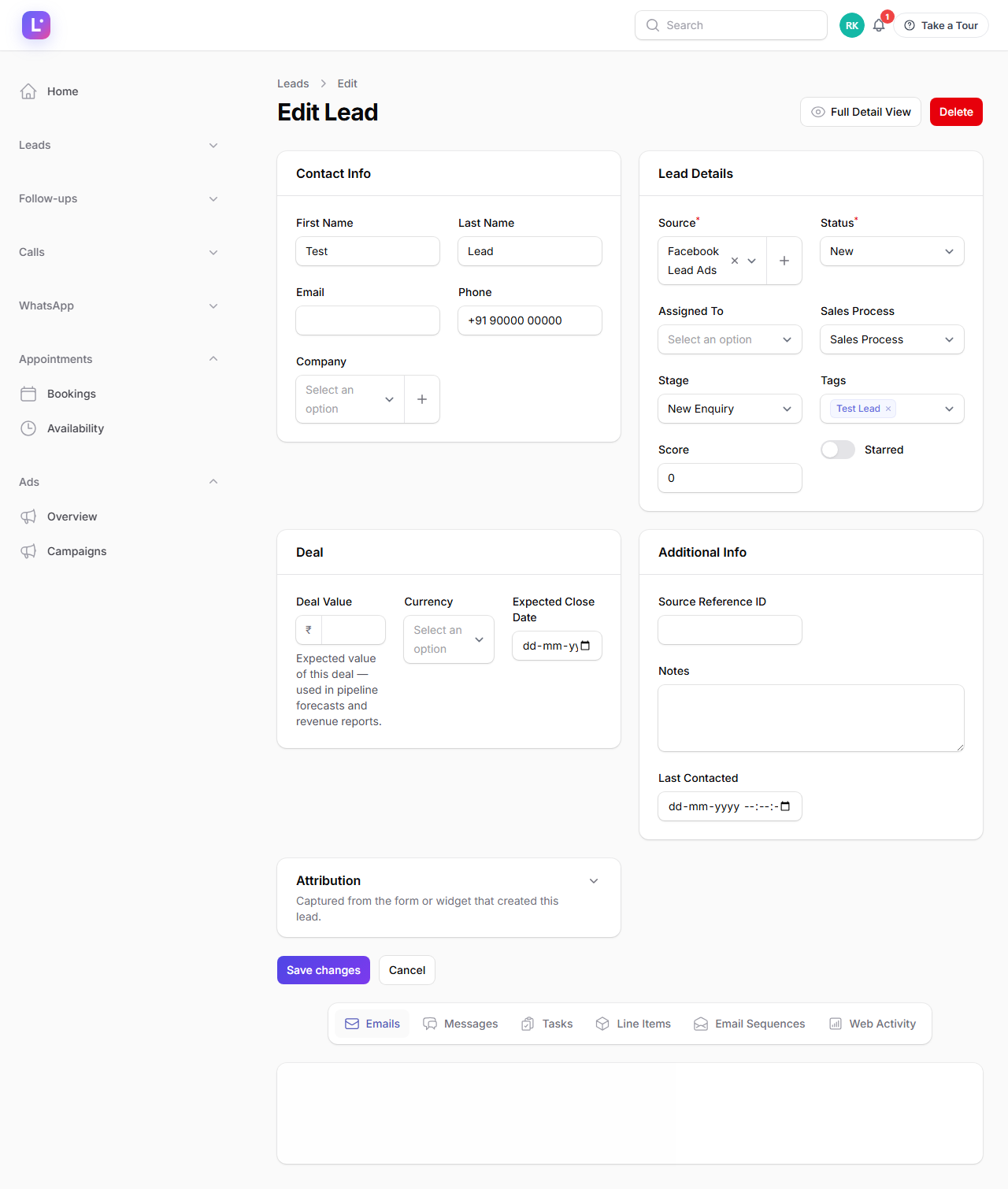
| Edit | Change the lead's fields (name, contact, value, stage, tags…). |
| Add line item | Build a deal: product, description, unit price, quantity, discount. Feeds quotes. |
| Create task | A follow-up task — title, assignee, due date (defaults to tomorrow 9:00), priority, reminder. |
| Send email | Pick a template (or write from scratch), attach files, send. If the install has no SMTP configured, the CRM warns that mail is written to the log instead of delivered. |
| Call lead | In-app calling, when your business has voice enabled. Requires your own phone number on your profile. |
| Send message | Send on WhatsApp, SMS, Viber or Telegram — the channels your business has switched on. |
| Open conversation | Jumps into the shared WhatsApp inbox thread with this lead. |
| Log call | Record a call you made elsewhere: direction, duration, outcome (connected, voicemail, no answer, not interested, callback), notes. |
| Add note | A free note on the timeline. Mention teammates with @name to notify them. |
| Move stage | Change the pipeline stage (same as dragging on the board). |
| Mark won | Closes the deal: enter the final amount — it is stored as won value and stamped with the win date. |
| Mark lost | Closes as lost with a reason. |
| Assign | Hand the lead to another team member. |
| Enroll in sequence | Add to an email follow-up sequence. |
| Enroll AI SDR | Hand the lead to an AI follow-up agent (respects opt-outs and agent reach rules — enrolling twice does nothing). |
| Apply tags / Star | Housekeeping. |
The More menu holds the finance and privacy tools:
- Create quote and Create invoice — turn deal items into documents.
- Enrich with AI — look up company/social data (needs the lead's email).
- AI draft email — generate a first draft in the tone you pick.
- Merge lead — combine with its duplicate (only offered when the CRM has flagged one).
- Export data — download everything stored about this lead as JSON (GDPR access).
- Send portal link — email the customer a secure link to their billing/portal area (link valid 30 minutes).
- GDPR anonymise / erase — irreversible privacy operations; erase schedules the data for deletion after the cool-off window.
The guidance cards
At the top of the page the CRM computes, from live data:
- Next best action — one recommended step, highest priority first: an overdue follow-up ("call now"), a new lead nobody has contacted ("call / WhatsApp"), an appointment within 24 hours ("confirm it"), or no open task ("schedule one"). Terminal leads (won/lost) show nothing.
- Health — healthy, needs attention, or at risk, with the reason (for example "no contact in 7 days").
Open it before you dial The next-best-action card tells you the single highest-value thing to do with this lead right now. Do that first, then work the rest.
The history sections
Scrolling down you get the lead's whole story, newest first where it makes sense:
- Activity timeline — every change, logged automatically.
- Tasks — open and completed follow-ups.
- Notes — everything people wrote (including
@mentions). - Calls — the last 10 calls with duration and outcome (see Calls).
- Messages — the WhatsApp/SMS conversation (last 50 messages).
- Emails — sent and received.
- Quotes & invoices — commercial documents attached to this lead.
- Attachments — files up to 20 MB each (stored per business, per lead).
- Page views — the last 20 website pages this person visited (when web tracking is installed on your site).
Steps
1. Open a lead
- From All Leads or the Board, click the lead's name / View.
Expected result: Lead 360 opens with the action bar, guidance cards and history.
2. Act on the next best action
- Read the Next best action card and click its button (call, WhatsApp, or schedule).
Expected result: the recommended tool opens directly — no searching.
3. Log what happened
- After a call made outside the CRM, click Log call, set direction, duration, outcome and notes, then save.
- Or click Add note for anything else.
Expected result: the entry appears on the timeline and feeds reports (response time, call activity).
4. Close the deal honestly
- Move stage as the deal progresses.
- When it closes, Mark won (with the final amount) or Mark lost (with a reason).
Expected result: the lead's outcome is recorded once, and revenue reports (including Source Attribution) start counting the money.
Expected result
One screen answers: Who is this? What happened? What should I do now? Where is the money? — for sales, and the same screen gives admins the legal/privacy controls.
Common mistakes
- Editing the stage instead of dragging — both work; on mobile the button is easier. Do not use "Move stage" to mark won/lost — use Mark won / Mark lost so amounts and dates are recorded properly.
- Sending email when the install has no SMTP — you will see a log-mode warning; configure mail under Settings → Communication or ask your platform admin.
- Trying to merge without a duplicate — the CRM only offers merge when it has flagged a duplicate. Check the name column icon on All Leads.
- Deleting attachments to "clean up" — attachments are part of the record; delete only when you mean it.
- Running GDPR erase casually — it is irreversible and subject to a legal cool-off. Use anonymise when you just need the person removed from daily view.
Troubleshooting
| Symptom | Fix |
|---|---|
| Call lead button missing | Voice is not enabled for your business, or your profile has no phone number. See Calls. |
| WhatsApp send blocked | Outside the 24-hour window a template is required; or the lead replied STOP. See WhatsApp inbox. |
| "Enroll AI SDR" does nothing | The lead opted out, the agent's reach rules block it, or an enrollment already exists — all intentional. |
| Next best action is empty | The lead is won/lost (terminal) — nothing to nudge. |
Technical details
- Page:
App\Filament\Resources\LeadResource\Pages\ViewLead, custom Blade viewfilament.resources.leads.view; modelApp\Models\Lead. - Next best action:
App\Services\Leads\NextBestActionService(deterministic priority list). The additional recommendations list comes fromApp\Services\Leads\LeadNextActionService(30-minute cache keyed on the lead'supdated_at). - Health:
App\Services\Leads\LeadHealthService::evaluate()with thresholds inconfig('leadhub.ux.health'). - Log call creates a
LeadCallrow withsource = cloud,status = disposition = outcome, duration in seconds. - Enroll AI SDR creates an
AiSdrEnrollmentguarded byai_sdr_opted_out_atandAiSdrAgent::canReach(processed every 15 minutes byProcessAiSdrEnrollments). - GDPR export returns JSON; the portal link uses a
PortalAccessTokenvalid for 30 minutes; anonymise/erase run through the data-privacy pipeline (leadhub:execute-erasure).
Related guides
- Leads — the list you came from.
- Follow-ups & tasks — create and complete the plan.
- Calls — recording, outcomes and the call log.
- WhatsApp inbox — the conversation behind Open conversation.
- Lead routing, scoring & health — how health and scores are computed.
- Reports — where this lead's outcome shows up.
Was this page helpful?
Thanks — noted. ✦