Device health
The on-phone checklist that proves what each Android device supports — permissions, sync, recording capability, battery — and how admins see it in the CRM.
Device health
Device health is the app's honesty screen. Instead of guessing why calls, push or recording aren't working, open it and read the exact state of this phone — then fix it with one tap where a fix exists.
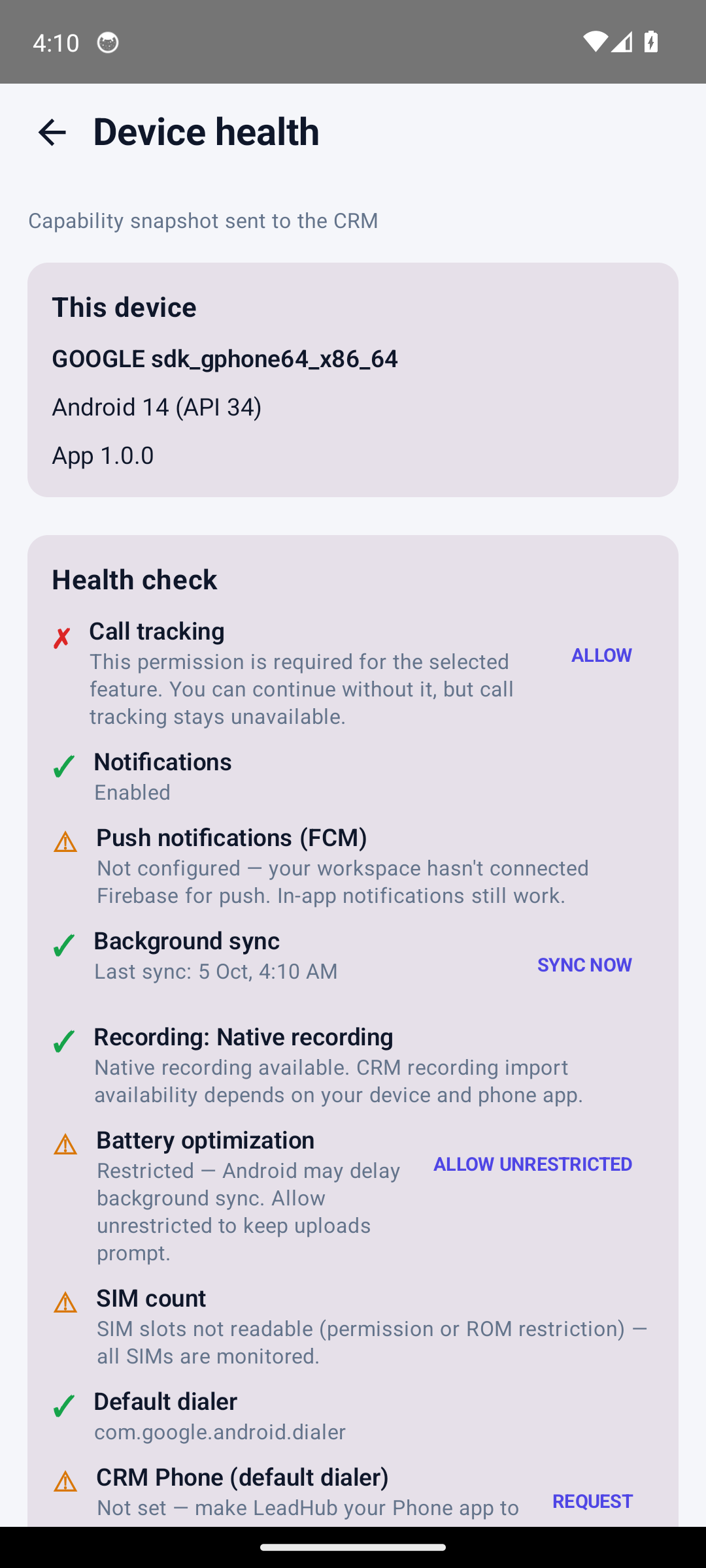
Every phone shows its own results — the rows above come from a test device; yours will differ.
Who this is for
- Agents checking their own phone before reporting a problem.
- Admins reviewing what a specific team phone supports.
Difficulty: Easy · Time: about 5 minutes · Prerequisites: the app installed and logged in.
Step 1 — Open it
- More → Device health (from the bottom navigation), or
- More → Settings → Device → CHECK DEVICE.
The screen re-runs the device check and pushes a fresh capability snapshot to the CRM every time it opens (quietly — if the phone is offline it just saves locally and sends later).
Step 2 — Read the rows
This device — manufacturer, model, Android version and app version.
Health check rows, each with ✓ / ⚠ / ✗ and, when possible, an action button:
| Row | What it tells you | Actions |
|---|---|---|
| Call tracking | Whether the call-log permission is granted — the permission calls sync depends on | ALLOW re-requests phone/call-log permissions |
| Notifications | Whether Android allows this app to notify | ALLOW (Android 13+), SETTINGS |
| Push notifications (FCM) | Registered / Permission denied / Not configured / Pending | ALLOW, SETTINGS, RETRY |
| Background sync | Last successful sync and current activity ("Uploading now…", "Waiting for a connection", backing off) | SYNC NOW |
| Recording: … | This phone's recording capability level with a plain-language explanation | — |
| Battery optimization | Whether uploads can be delayed by Android's Doze | ALLOW UNRESTRICTED |
| SIM count | How many active SIMs were detected (managed in Settings → Call tracking) | — |
| Default dialer | Which phone app is set as default on this device | — |
| CRM Phone (default dialer) | Whether LeadHub holds the optional default-Phone role; explains it does not guarantee recording | REQUEST, RELEASE |
Below the rows:
- Diagnostics — the exact facts support may ask for, with GENERATE SUPPORT REPORT. The report is redacted: no access tokens, phone numbers, message contents or recordings are included.
- RE-CHECK DEVICE — re-run everything after making changes.
Step 3 — How admins see it in the CRM
- In the CRM, go to Super Admin → Android App → Devices (the
AndroidDevicespage). - The list joins the latest capability snapshot per device: model, Android version, app version, recording mode, tracking mode and the device's activity.
- The page header summarises totals (e.g. how many devices are active in the last 24 h / 7 days) so an admin can spot phones that stopped syncing.
- The view is read-only — it is a report, not a remote control.
Expected result
- Every row has a clear state and an explanation in the same words a support agent would use.
- Admins can answer "can this phone record calls / is it syncing?" from the CRM without touching the phone.
- Reopening the screen after fixes shows the rows turn from ⚠ to ✓.
Common mistakes
| Mistake | What happens | Fix |
|---|---|---|
| Checking Device health while offline and expecting the CRM to update | The push is skipped; only the phone knows | It re-syncs later; tap RE-CHECK DEVICE when online |
| Judging recording capability from the web CRM only | The CRM shows the last snapshot | Open Device health on the phone for a fresh reading |
| Ignoring the battery row | Syncs drift to hours late | Tap ALLOW UNRESTRICTED |
| Sharing a screenshot instead of the support report | Screenshots miss detail | Use GENERATE SUPPORT REPORT |
Troubleshooting
- "Couldn't check this device…" — the probe itself failed (rare). Tap RE-CHECK DEVICE; if it persists, note the message and escalate with the support report.
- Rows disagree with what you see in Android Settings — tap RE-CHECK DEVICE; Device health always reflects the current OS state.
- Push shows "Not configured" — the workspace hasn't connected Firebase; in-app notifications still work. See Push notifications.
Technical details
- The checks come from
com.leadhub.sales.capability.CallCapabilityEngine(returns aCapabilitySnapshot); opening the screen callspushSnapshot()and a daily background refresh runs viapushIfStale. - Snapshot payload:
POST /api/v1/mobile/devices/capabilities(device_capability_snapshotstable; the server keeps the latest 20 snapshots per device,CapabilityController::MAX_SNAPSHOTS). - The SA-side list is
App\Filament\SuperAdmin\Pages\AndroidDevices(nav group "Android App", slugandroid-devices). - Sync row state is read from WorkManager work infos for
SyncWorker.UNIQUE_NAME.
Related guides
Was this page helpful?
Thanks — noted. ✦