WhatsApp inbox
One shared team inbox for WhatsApp: read replies, send templates or free messages, and respect the 24-hour window.
WhatsApp inbox
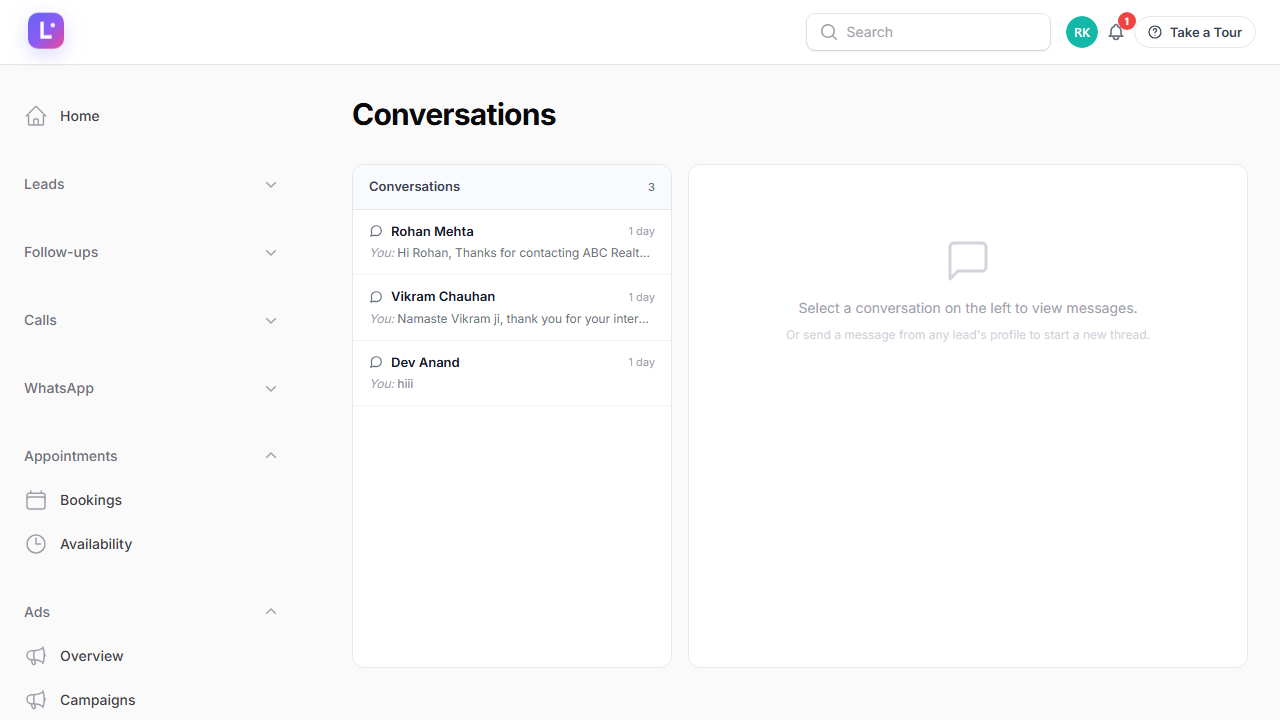
The Inbox is where your business talks to leads on WhatsApp. It is shared: whoever on the team handles the reply, the conversation and its full history belong to the lead in the CRM — not to someone's personal phone.
Who this is for
-
Sales agents — answer replies, send follow-ups, share templates.
-
Managers — watch response coverage across the team.
-
Admins — connect the WhatsApp number and manage approved templates.
-
Difficulty: Medium
-
Time: 15 minutes
-
Prerequisites: WhatsApp is connected for your business (Settings → Connections → WhatsApp / Messaging) and the
conversationsplan feature. Templates must be approved before you can start a conversation outside the reply window.
What is on the screen
- Left rail — every lead with a conversation (most recent first), with an unread count for new inbound messages.
- Thread — the messages with that lead, oldest to newest. Opening a conversation marks the inbound messages as read.
- Composer — where you write. It has two modes: free-form and template.
The 24-hour window (the one rule to remember)
WhatsApp only lets a business send free-form messages within 24 hours of the lead's last message. Outside that window, every message you start must be an approved template.
Free text outside the window is rejected If the last inbound WhatsApp is missing or older than 24 hours, Meta rejects free-form sends (error 131047). The CRM detects this situation and steers you to templates — but plan ahead: if you need to reach someone tomorrow, send an approved template today.
Steps
1. Open the inbox
- In the sidebar open WhatsApp → Inbox (
/admin/conversations).
Expected result: the conversation list loads with unread counts on the leads who replied.
2. Read and reply
- Click a conversation. The thread opens with the full history.
- Type in the composer if the window is open, or pick a template if it is not.
- Send.
Expected result: your message is delivered through your business WhatsApp number. The CRM only shows the message as sent after the provider confirms it — there is no fake "sent" bubble.
3. Send a template properly
- Switch the composer to template mode.
- Choose an approved template from the list.
- Fill in each variable (the template's placeholders, for example the lead's first name or your booking URL).
- Watch the live preview; if a required variable is missing, the send is blocked and the preview highlights it.
Expected result: the template sends with the values you set. Templates are re-checked against Meta's approval status at the moment you hit send — if a template was paused by Meta, the CRM tells you instead of failing silently.
4. Work the channel guardrails
- The composer only offers channels the lead actually has (a phone number) and that your business has switched on.
- If the lead replied STOP (or "unsubscribe" / "do not message"), the CRM records an opt-out on the lead and messaging automations stop for them.
Expected result: you cannot accidentally message someone who opted out — the system blocks it and logs it.
Other WhatsApp screens
| Screen | Where | What it is |
|---|---|---|
| Messages | WhatsApp → Messages (/admin/whats-app-messages) |
Delivery log: every message with direction, body, template used, Meta message id and status (delivered / read ticks). Filter by status, direction, date. |
| Templates | WhatsApp → Templates (/admin/whats-app-templates) |
Template manager (managers and above): Meta-approved templates synced from your WABA, plus legacy local templates. |
| WhatsApp / Messaging | Settings → Connections | Connection status and messaging configuration. |
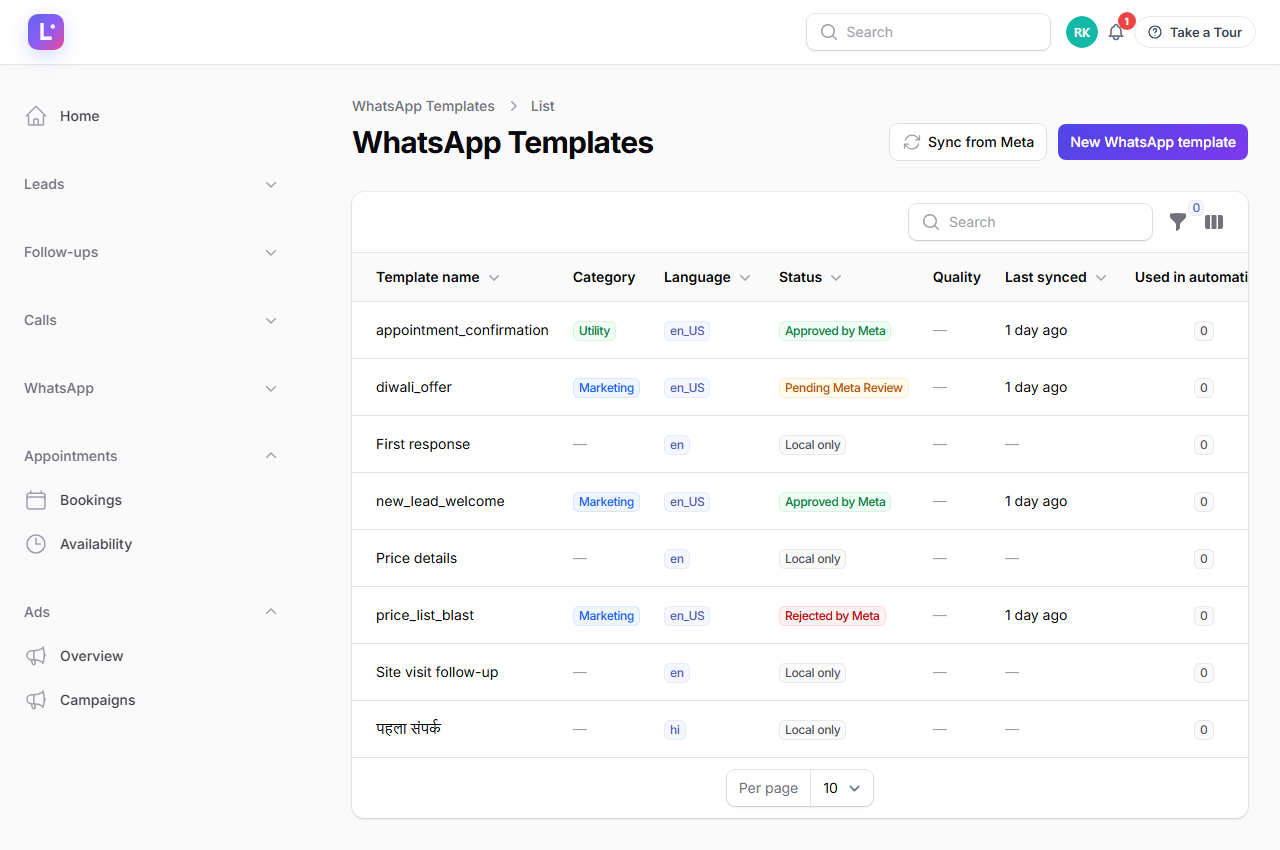
Templates screen in one minute
- Meta-managed rows come from your WhatsApp Business account: category, status and quality are synced from Meta (a "sync from Meta" action refreshes them; local edits are flagged as diverging).
- Local-only templates are legacy rows that never went to Meta — good for internal reference, but they cannot be sent as Meta templates.
- The builder walks through the six numbered template sections (header, body, buttons…) with a live bubble preview, and maps positional variables (
{{1}},{{2}}…) to CRM tokens such aslead.first_name,business.booking_urlorappointment.date. - Creating/editing templates requires the WhatsApp templates permission (
whatsapp.templates.manage, manager or above).
Expected result
Every WhatsApp conversation your business has is visible in one shared place, replies are attributed to the lead, and Meta's rules (24-hour window, approved templates, opt-outs) are enforced by the interface instead of being tribal knowledge.
Common mistakes
- Typing free text outside 24 hours. It will be rejected. Use a template (and plan ahead next time).
- Deleting a template that is still linked to automations. Automations referencing a paused/removed template skip or fail — check the automation before removing anything.
- Expecting instant "sent". The bubble appears when the provider confirms; a slow send shows no bubble yet, not a failure.
- Filling variables loosely. The preview is exact — what it shows is what the customer sees. Check names and dates.
- Ignoring the opt-out. STOP is permanent until the lead messages again; the CRM enforces it. Do not try to work around it from another channel.
Troubleshooting
| Symptom | Fix |
|---|---|
| "Send blocked" on a template | A required variable is missing (the preview highlights it) or the template is no longer approved by Meta. |
| Error 131047 | Outside the 24-hour window — switch to a template. |
| Thread shows "not delivered" | Check the Messages log for provider status; confirm your WhatsApp connection is healthy under Settings → Connections. |
| Replies not appearing | Check the webhook health for your WhatsApp number, and WhatsApp not sending. |
| Lead cannot receive anything | They opted out (STOP). The lead's timeline shows the opt-out event. |
Technical details
- Inbox page:
App\Filament\Pages\Conversations(nav label Inbox), plan featureconversations. Shows the last 100 conversations with unread inbound counts. - Send path:
sendMessagedispatchesSendLeadMessage; theLeadMessagerow is created only after the provider confirms. Template sends useWhatsAppTemplateService::approvedForTenant+WhatsAppVariableResolver::resolveAll(missing tokens block the send) and re-check approval at send time. - 24-hour window:
getOutsideReplyWindowProperty— no inbound WhatsApp, or last inbound older than 24 hours. Provider error for window violations:131047. - Opt-outs:
WhatsAppMessageService::maybeOptOut— exact keyword match, normalized; keywords fromautomation.whatsapp_optout_keywords(defaults:stop,unsubscribe,do not message); setsleads.whatsapp_opted_out_atwith sourceinbound_keywordand writes an activity entry. - Message log:
App\Filament\Resources\WhatsAppMessageResource(delivery/read viadelivered_at,read_at,provider_statusonLeadMessage). - Templates:
App\Filament\Resources\WhatsAppTemplateResourcegates management behindwhatsapp.templates.manage; Meta-managed rows carrymeta_template_id.
Related guides
- Message templates — template rules in depth.
- WhatsApp automations — send_whatsapp automations.
- Lead 360 view — Open conversation from any lead.
- Notifications — alerts when leads reply.
Was this page helpful?
Thanks — noted. ✦