Push notifications (FCM)
Send push notifications to the Android app with your own Firebase project — server-side service account, test pushes, and how devices register.
Push notifications (FCM)
Push notifications alert salespeople about new leads, assignments and follow-ups even when the app is closed. The CRM sends them through Firebase Cloud Messaging (FCM) HTTP v1 using your own Firebase project ("BYO Firebase"). Push is optional — without it, users still get in-app notifications the next time they open the app.
Where the Firebase connection comes from The Android app receives its Firebase client options at runtime from the login endpoints (see Firebase phone OTP) — there is no google-services.json. The server side (this page) is separate: to send pushes the CRM needs a Firebase service account JSON.
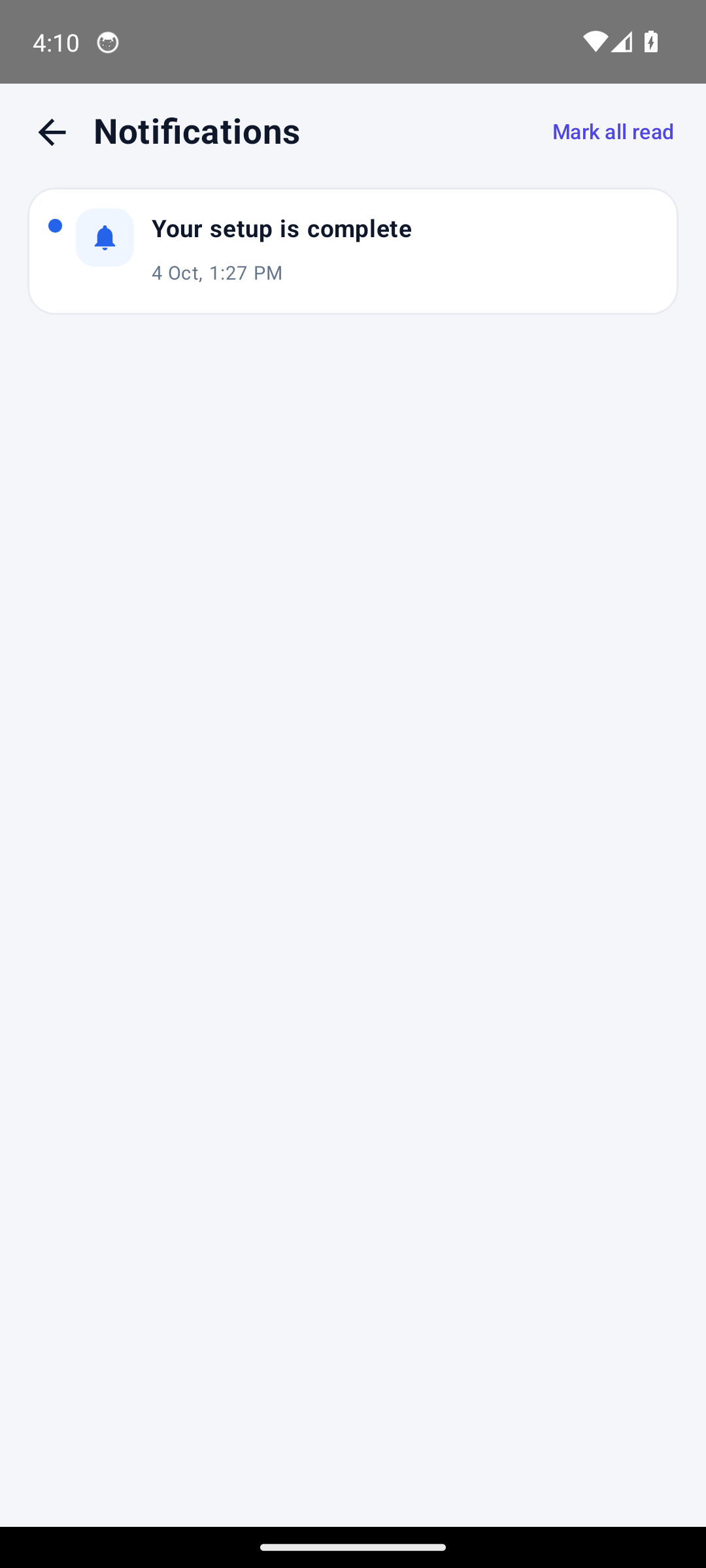
In-app notifications (shown above) work with no Firebase setup at all. FCM makes the phone buzz in the background — the screen looks the same.
Who this is for
- Admin who wants push working for their workspace.
- Super Admin setting a platform-wide default.
- Developer debugging delivery or building custom integrations.
Difficulty: Medium · Time: about 10 minutes · Prerequisites:
- Firebase project from the OTP setup (same project works).
- The JSON service account key: Firebase console → Project settings → Service accounts → Generate new private key.
The service account JSON is a secret It contains a private key. Paste it only into the CRM's encrypted settings field — never into chat, email or a ticket. The CRM encrypts it at rest and never displays it back.
Step 1 — Decide where the key lives
The CRM resolves the service account in this priority order:
| Priority | Location | Best for |
|---|---|---|
| 1 | Workspace setting (tenants.settings.push.firebase_service_account_json) |
A client with their own Firebase project |
| 2 | Platform setting (Super Admin → Mobile settings, stored encrypted) | One project for all workspaces (most common) |
| 3 | Server environment variable FCM_SERVICE_ACCOUNT_JSON |
Deployments that keep secrets in .env |
The JSON must contain at least project_id, private_key and client_email. Configure exactly one layer — the first one set wins.
Step 2 — Paste the service account
Super Admin: open the platform Mobile App Login — Platform Defaults page, find the Push notifications (FCM) section, and paste the whole JSON into the field.
Client Admin: the same section exists on Settings → Connections → Mobile App.
Save. The JSON is encrypted with the application key.
Step 3 — Send a test push
Use the Send test push button in the same section — it targets your own user in the app. If you prefer the CLI:
php artisan leadhub:test-push owner@example.com
Expected result: a notification arrives on the handset within seconds, titled with the test subject you chose.
Test pushes need a registered device A test only reaches a device that has logged in and registered its FCM token. If the section says Not configured or Pending, finish Mobile app setup and open the app once on the phone.
Step 4 — Check the device state
The settings section shows an honest per-device state: Registered, Permission denied, Not configured or Pending — the raw token is never displayed. On the phone, the Device health screen shows the notification permission and a button that opens Android settings; Android 13+ asks for the notification permission once, from the Home screen. If permission shows denied, re-enable it in Android settings → Apps → Zodiac CRM → Notifications.
How devices register
- On login, the app fetches workspace config and prepares Firebase with your project's options.
- The app obtains an FCM token and registers it with the CRM:
POST /api/v1/mobile/device/register(thepush_tokenfield, stored per device). - When Android rotates the token (
onNewToken), the app refreshes it silently — retries are best-effort. - If FCM later reports a token as UNREGISTERED (app uninstalled, data cleared), the CRM clears the stored token automatically, so sends skip dead devices instead of erroring.
What a push contains
Payloads are deliberately small and whitelisted: a type, title, body, notification_id, plus at most one entity reference — lead_id, lead_call_id, call_id, appointment_id, task_id or followup_id. When an entity id is present, the notification carries a deep link (crm://lead/123, crm://call/45, crm://followup/7, crm://appointment/9, crm://notification/11) so tapping opens the right screen. Notifications use the Android channel leadhub_default.
Every push is best-effort: if FCM is unreachable or unconfigured, the send is skipped silently — the notification record is still created in-app, so nothing is lost.
Expected result
You paste the service account once, press Send test push, a notification lands on the phone, and from then on lead assignments and follow-up reminders arrive as pushes. If push is never configured, the system works exactly as before — in-app notifications only.
Common mistakes
- Pasting a Web App config or api key instead of the service account JSON. The required keys are
project_id,private_key,client_email. - Using the wrong project — the service account must belong to the same Firebase project the app is initialized with.
- Testing before any device registered — nothing to deliver to.
- Changing the JSON without clearing the app data — devices keep their old FCM token until it is invalidated; new registrations use the new project.
Troubleshooting
| Symptom | Likely cause | Fix |
|---|---|---|
| "Not configured" in settings | No service account at any layer | Paste JSON in workspace or platform settings |
| Test push "succeeds" but nothing arrives | No device registered, or notification permission denied | Check Device health; allow notifications |
| Push worked, then silently stopped | App uninstalled/reinstalled — token rotated or invalidated | Open the app once; check the device state |
| Some users never receive pushes | Users have never logged in on a device | Onboard them via Mobile app setup |
403/401 errors in logs when sending |
Service account revoked or wrong project | Re-generate the key and re-paste |
Technical details
- Sender:
App\Services\Push\PushService+FcmPushProvider(FCM HTTP v1messages:send), OAuth2 access token minted from the service account (RS256 JWT →oauth2.googleapis.com/token, scopefirebase.messaging, cached ~50 minutes). - Resolution order: tenant
settings.push.firebase_service_account_json→ platformsettingsrow (grouppush) →FCM_SERVICE_ACCOUNT_JSONenv. UNREGISTEREDresponses null the device's token server-side.- Registration endpoints:
POST /api/v1/mobile/device/registeranddevice/heartbeat; notification read-state undernotifications/…(see Mobile API). - CLI:
php artisan leadhub:test-push {email}. - UI: "Push notifications (FCM)" section on both the platform Mobile settings page and the tenant Mobile App page.
Related guides
Was this page helpful?
Thanks — noted. ✦