Leads
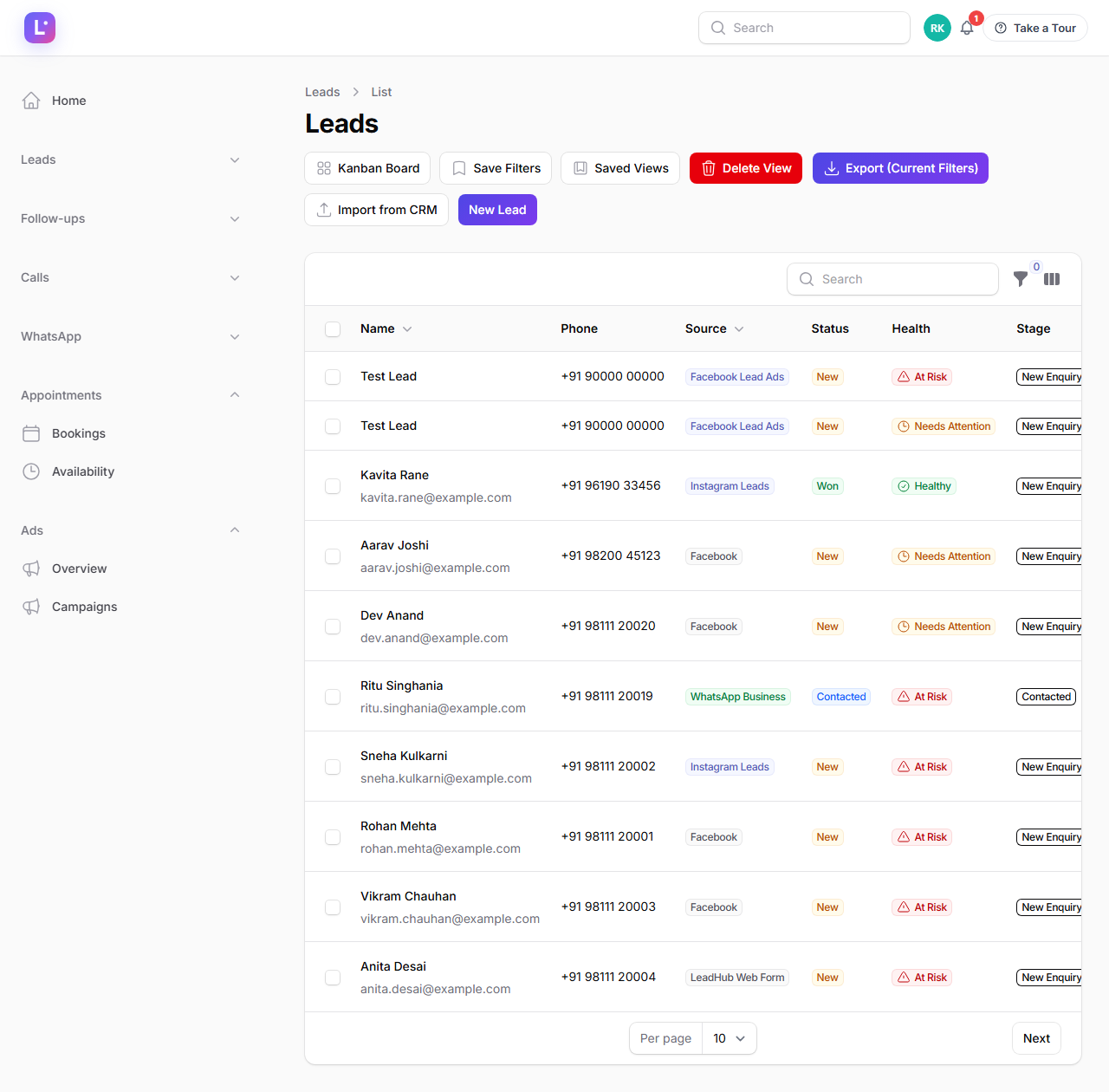
The All Leads list — find, filter, act on, import and export every lead in your business from one screen.
Leads
All Leads is the master list of your business — every enquiry from Facebook, Instagram, forms, imports and manual entries lands here. It is the screen your sales team lives in all day: search, filter, call, WhatsApp, assign and move leads forward without leaving the page.
Who this is for
-
Sales agents — your daily worklist: new leads, follow-ups due, calls to make.
-
Managers — monitor the team, reassign, run exports, spot leads going cold.
-
Admins — configure pipeline behaviour, imports and limits.
-
Difficulty: Easy
-
Time: 10 minutes to learn the essentials
-
Prerequisites: You are signed in to the tenant panel (
/admin). At least one lead exists, or you can create one.
What is on the screen
Above the table: search, the filters panel, and header buttons. Below it: one row per lead with these columns:
| Column | What it tells you |
|---|---|
| Name + email | The lead. Click the row to open Lead 360. |
| Phone | Copyable at a click — used for dialling and WhatsApp. |
| Company | Company name, when captured. |
| Source | Badge showing where the lead came from (Facebook, form, import, manual…). |
| Status | The lead status (new, contacted, qualified, converted, lost). |
| Health | Calculated badge (healthy / needs attention / at risk) — hover for the reason. See Lead routing, scoring & health. |
| Stage | The pipeline stage the lead sits in. |
| Deal value | Estimated deal size in ₹. |
| Expected close | The date the deal should close. |
| Score | Points from your scoring rules. |
| Tags | Your labels. |
| Assigned | The team member who owns the lead. |
| Created | When the lead entered the CRM. |
| Waiting on | Who is holding things up — us, them, or a new lead nobody has answered yet. |
Small icons matter too:
- Star — flag a lead as important (filter by starred).
- Duplicate icon — the CRM has spotted a possible same person (same email/phone); a manager can merge from the lead view.
The page refreshes itself every 30 seconds, and the Leads menu badge shows how many new leads arrived in the last 24 hours.
Steps
1. Find a lead
- Open Leads → All Leads (
/admin/leads). - Type in the search box. It searches first name, last name, email and phone as you type.
Expected result: the list narrows to matching leads immediately.
2. Filter the list
- Open the Filters panel.
- Pick any combination: source, status, pipeline, stage, assigned user, tags, starred, duplicates, waiting-on, created date range, minimum score, deal value range.
- Start with the Saved view shortcuts at the top of the filters:
- My leads — leads assigned to you.
- New today — created today, for a fast first response.
- No contact — nobody has reached out yet.
- High value — deal value above your high-value threshold (default ₹25,000; configurable per business).
- Facebook leads — everything captured from Meta.
- Overdue follow-ups — your promises that slipped.
Expected result: the table shows only the leads matching your choices. Clear filters or pick another saved view to go back.
Keep a view forever Set your filters, then use Save filters (header button). Give the view a name, and optionally tick email alerts (a daily summary of matches) and share with the team. Saved views appear in the Saved views menu for one-click loading. Use Delete view to remove one.
3. Act on a lead from the row
- Click the ⋯ actions on any row.
- Available actions:
- Star / unstar — mark importance.
- View — open the full Lead 360 view.
- WhatsApp — pick an approved template (or free text inside the 24-hour window) and open WhatsApp click-to-chat. See WhatsApp inbox.
- Call — dials through your phone/softphone (
tel:link). See Calls. - Edit — update the lead's details.
- Delete — remove the lead (permission required).
Expected result: the action happens in place — for WhatsApp, WhatsApp opens with the message pre-filled; for Call, your dialler opens.
4. Bulk actions (many leads at once)
- Tick the checkbox on each row you want (or select all on the page).
- Open Bulk actions and choose:
- Assign to a team member (or yourself).
- Change status.
- Add tag / Remove tag (adding a tag fires any automation waiting on it).
- Move stage.
- Export CSV.
- Run automation — manually trigger an automation for these leads.
- Enroll in sequence — add to an email follow-up sequence (already-enrolled leads are skipped).
- Delete.
Expected result: one confirmation, then the change applies to every selected lead; the table refreshes.
5. Export leads
- Set the filters for exactly what you want (for example: this month's Facebook leads).
- Click Export (header button) → confirm.
Expected result: up to 20,000 rows download immediately as a CSV of the current filtered selection. If your selection is larger, the export is prepared in the background and emailed to you when ready (check Notifications and your inbox). Very large exports generate an Export ready notification.
6. Import leads from a CSV
- Click Import from CRM (header button).
- Upload a CSV up to 20 MB, choose how the columns map to your CRM fields, and confirm.
Expected result: the CRM auto-detects the vendor format (common CRM exports are recognised), skips duplicates by email/phone where configured, applies lead assignment rules to new leads, and shows an import summary.
7. Create a lead by hand
- Click New lead.
- Fill in at least a name and one contact method; add source, tags, deal value and assignee.
- Save.
Expected result: the lead appears at the top of the list. If assignment rules are on and you left Assigned empty, the CRM assigns it automatically. Lead creation is limited by your plan's lead allowance — the button explains if the limit is reached.
Expected result
You can find any lead in seconds, see who is ignoring them, act without opening five screens, and get data out (CSV) or in (import) whenever you need.
Common mistakes
- "My leads disappeared" — a filter or saved view is still applied. Open Filters and clear them, or switch views.
- High-value preset shows nothing — the threshold is per business (default ₹25,000). Leads below it will not match; adjust filters to see them.
- Export missing recent changes — an export is a snapshot at the moment you click it. Re-export for fresh data.
- Deleting leads to "clean up" — deleting a lead also removes its tasks, notes and history. Prefer status lost or a tag, and keep the data.
- Ignoring the duplicate icon — two agents calling the same person is a bad look. Merge duplicates from the lead view.
Troubleshooting
| Symptom | Fix |
|---|---|
| A lead captured on Facebook is not in the list | Check the saved view/filters first, then the source connection health in Settings → Connections and Ads health & needs attention. |
| Export never arrives | Large exports are emailed by the scheduler. Confirm the cron is running (see Cron & queue workers) and check the spam folder. |
| The "New lead" button is disabled | Your role permission or the plan's lead limit is blocking it. Ask an admin. |
| Phone number not clickable | Save the lead's phone in international format (for example +91…). |
Technical details
- Page:
App\Filament\Resources\LeadResourcewithListLeads/ViewLeadpages; modelApp\Models\Leadon theleadstable. - The list polls every 30 seconds; the nav badge counts
status = newleads from the last 24 hours (60-second cache). - Health badges come from
App\Services\Leads\LeadHealthServicevia theLead::withHealthState()scope. - Direct export streams through the
leads.export.streamroute with a session token; larger sets are handled by theApp\Jobs\ExportLeadsqueue job (limit constantMAX_DIRECT_EXPORT_ROWS = 20000). - Saved views are
App\Models\SavedFilterrows (per user; optional team sharing and email alerts, delivered by the hourlyfilters:send-alertscommand). - CSV import uses
App\Services\Imports\CrmCsvImporter(vendor auto-detection); creation limits come fromPlanGate::withinCreationLimit('max_leads').
Related guides
- Lead board (Kanban) — the visual pipeline version of this list.
- Lead 360 view — everything about one lead in one screen.
- Sales process & stages — set up pipelines and stages.
- Lead routing, scoring & health — auto-assignment, scoring rules, health states.
- Follow-ups & tasks — what to do after the first call.
Was this page helpful?
Thanks — noted. ✦