Test your setup
Wizard step 12 — send a test lead through your real setup and read the five checks that prove your CRM works end to end.
Test your setup
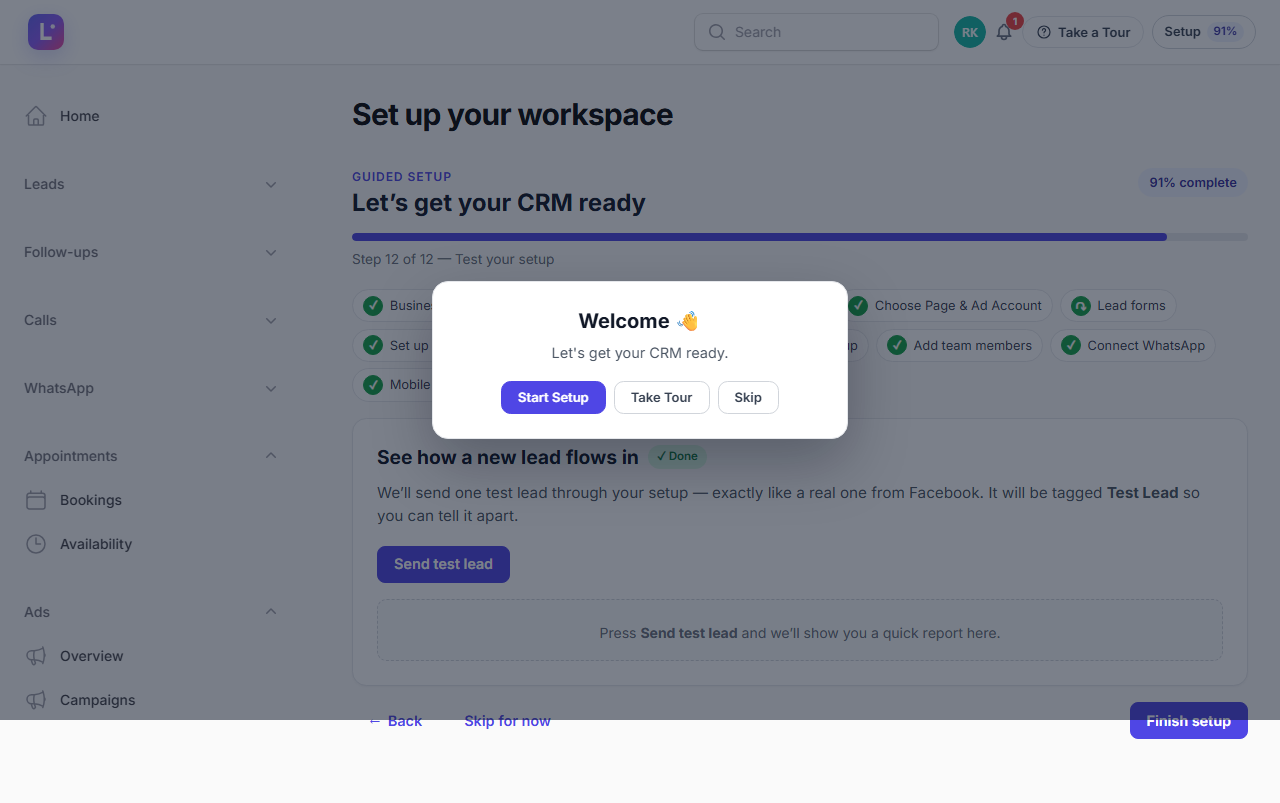
This is the final wizard step: "See how a new lead flows in". Clicking Send test lead runs your entire pipeline for real — routing, automation, notification — and reports back with five checks. It is the difference between "we clicked through the setup" and "we know it works".
Who this is for
- Workspace owners and admins finishing setup.
- Anyone re-verifying after changing routing, forms or automations.
Difficulty: Easy · Time: 1–3 minutes · Prerequisites: you are in the wizard on the final step. Routing and follow-up steps are ideally settled — the test will tell you if they are not.
Step by step
1. Send the test lead
- Click Send test lead.
- What happens: the CRM creates a real lead in your workspace:
- Source: Meta,
- Name: Test Lead,
- Phone: +91 90000 00000 (a placeholder number),
- Tagged Test Lead in amber so it is impossible to miss,
- Then it runs your normal pipeline exactly as production would: assignment, follow-up automation, notification.
- Expected result: the lead appears with a result line like "Test lead #42 is in your Leads list", followed by the five checks.
2. Read the five checks
| Check | What it proves | If it fails |
|---|---|---|
| ✓ Lead created | A lead row was actually written | Retry once; contact support if it persists |
| ✓ Fields mapped | Name and phone arrived in their proper fields | Fix the Meta form mapping (Lead forms & mapping) |
| ✓ Assigned | Your routing rule gave the lead an owner | Set an assignment mode (Lead assignment & follow-ups) |
| ✓ Follow-up created | The automation created the "+1 hour" task | Enable the New Lead Follow-up automation |
| ✓ Notification | The assignee received a CRM notification | Usually the same fix as Assigned — notifications go to the lead's owner |
- What happens: the checks are recorded against your onboarding, the step is marked verified, and the wizard moves to the completion screen.
3. Clean up (optional)
The test lead is a real lead — it counts in lists and reports while it exists. You can open it to inspect everything your team would see, then remove it from the Leads list like any other lead, or leave it (it is clearly tagged Test Lead).
Expected result
- Five green checks — your setup demonstrably catches, maps, assigns, schedules and notifies on a new lead.
- The onboarding step Test your setup is complete; the wizard shows Setup complete.
Common mistakes
- Treating the test lead as fake. It is a genuine record that exercises the real pipeline — which is why the checks are trustworthy.
- Failing to delete the test lead before reporting. It appears in dashboards until removed; tag first, clean up after.
- Re-sending repeatedly while a check fails. Each attempt creates another lead. Fix the failing check first, then send once more.
- Expecting a WhatsApp message in the checks. The notification check covers the in-app CRM notification for the assignee, not WhatsApp or push.
- Ignoring a missed check "for now". Each failed check points at exactly one earlier step — fix it now or leads will behave the same way in production.
Troubleshooting
| Symptom | Likely cause | Fix |
|---|---|---|
| Fields mapped fails | Phone or name mapped to "Don't import" in the lead form mapping | Correct the mapping, save, send again |
| Assigned fails | Routing mode is Unassigned, or round-robin pool empty | Configure routing, then re-test |
| Follow-up created fails | No enabled "new lead" automation | Enable/create New Lead Follow-up |
| Notification fails while Assigned passes | Assignee has no notification access yet | Check the user's notifications; re-login as them to confirm |
| Checks never render | Action error | Reload the step and retry once; if it persists, contact support |
What "notification" means here The check verifies the assignee received a CRM notification (the bell / in-app database notification). Push to their phone requires the Android app with notifications enabled — see Push notifications (FCM).
Technical details
- Service:
App\Services\GuidedOnboarding\TestLeadService— creates the lead (sourcemeta, first/last name "Test"/"Lead", phone+91 90000 00000, statusnew), attaches the Test Lead tag (#f59e0b), and storesraw_data = {is_test: true, created_by: 'guided_onboarding', actor_id}. - Checks performed against real state:
lead_created,fields_mapped(first name + phone present),assigned(assigned_user_idset),followup_created(aLeadTaskexists for the lead),notification(a database notification exists for the assignee). - On success the service stamps
test_lead_verified_aton the onboarding row, then callsOnboardingService::sync()— which is why the step flips to COMPLETED immediately. - Because it is a real lead, it travels the normal
LeadObserver::created()chain (scoring, activity, automations, assignment) — a true end-to-end proof.
Related guides
Was this page helpful?
Thanks — noted. ✦