Client onboarding from zero
The complete client onboarding journey — from your first login to a live, tested CRM, step by step through the guided setup wizard.
Client onboarding from zero
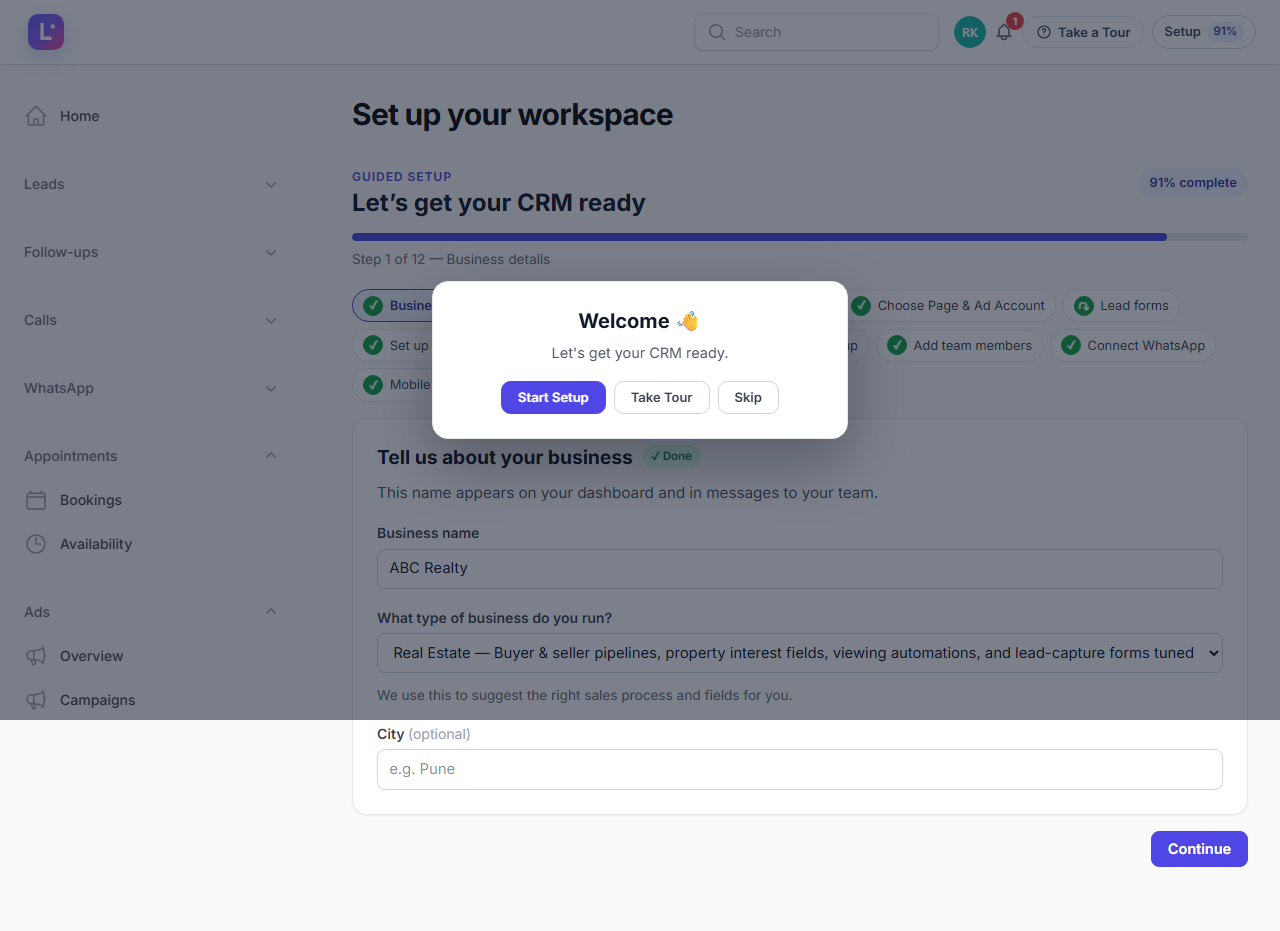
This is the complete journey for a brand-new workspace: you log in for the first time, the guided setup wizard walks you through 12 short steps, and you finish with a CRM that is connected to your Facebook Page and has proven it can catch a real lead.
Nothing here is technical. If you can use Facebook and WhatsApp, you can do this yourself.
The wizard is always there for you The wizard lives at /admin/guided-setup and is called "Set up your workspace". While you are a workspace owner or admin and setup is not finished, opening the CRM takes you straight there. A small Setup NN% chip in the top bar shows your progress and opens the step drawer.
Who this is for
- Business owners doing their own setup (no technical knowledge needed).
- Workspace admins setting the CRM up on behalf of the business.
- Anyone re-checking what a skipped step means.
Difficulty: Easy · Time: 30–45 minutes · Prerequisites:
- Your login email and password (sent to you when your workspace was created).
- A Facebook account that can already manage the Facebook Page you advertise with, and access to the ad account that runs your campaigns.
- Email addresses of the team members you want to invite (optional — you can add them later).
Only owners and admins see the wizard Sales agents (members) never get redirected into the wizard. Only workspace owners/admins run setup.
The journey at a glance
flowchart TD
    A[First login] --> B["Set up your workspace wizard"]
    B --> C["1 · Business details"]
    C --> D["2 · What type of business"]
    D --> E["3 · Connect Meta (Facebook)"]
    E --> F["4 · Choose Page & Ad Account"]
    F --> G["5 · Lead forms & mapping"]
    G --> H["6 · Sales process"]
    H --> I["7 · Lead assignment"]
    I --> J["8 · Follow-up setup"]
    J --> K["9 · Add team members"]
    K --> L["10 · Connect WhatsApp"]
    L --> M["11 · Mobile app"]
    M --> N["12 · Test your setup"]
    N --> O["Setup complete"]
    O --> P["Zodiac Tech team prepares your campaigns"]
| # | Wizard step | What you do | Detail guide |
|---|---|---|---|
| 1 | Business details | Your business name, type and city | Business details |
| 2 | What type of business | Pick your industry — installs a ready-made template | Business details |
| 3 | Connect Meta | Log in to Facebook safely (OAuth) — no password is ever shared | Connect Meta |
| 4 | Choose Page & Ad Account | Tell the CRM which Page and ad account to watch | Choose your Page & Ad Account |
| 5 | Lead forms & mapping | Tick the Meta lead forms to import and map their answers | Lead forms & mapping |
| 6 | Sales process | Your pipeline and stages (ready-made or your own) | Set up your sales process |
| 7 | Lead assignment | Off, one person, or round robin — plus follow-up defaults | Lead assignment & follow-ups |
| 8 | Follow-up setup | Automatic follow-up task and agent notification | Lead assignment & follow-ups |
| 9 | Add team members | Invite your sales agents and managers | Add team members |
| 10 | Connect WhatsApp | Optional: WhatsApp Cloud API (WABA + phone number) | Connect WhatsApp |
| 11 | Mobile app | Optional: Android app for the team | Mobile app setup |
| 12 | Test your setup | Send a test lead and watch it flow through | Test your setup |
Step by step
1. First login
- Open your CRM web address (for this install:
http://localhost/Lead%20Hub/, production:https://crm.zodiactechsoft.in) and log in with the email and password you were sent. - What happens: your first login as owner/admin lands on Set up your workspace and the 12 steps appear in order.
- Expected result: the first step, Tell us about your business, is open and the top bar shows a Setup 0% chip (progress grows as steps settle).
Interrupted setup is safe You can log out at any time. When you come back — or click the chip and choose Continue Setup — the wizard reopens at the first step that is not settled. Steps you completed stay completed.
2. Work through the steps
Each step follows the same rhythm: you provide or confirm something real, and the CRM verifies it really happened before marking the step done. You cannot fake progress — which is exactly why the finished setup works.
- Steps 1–2 — who you are: business name, type, city, and your industry. Your industry choice installs a ready-made template (pipeline, stages, custom fields, tags, templates, automations, forms). See Business details.
- Steps 3–5 — connect your lead source: Facebook login (OAuth), Page + Ad Account selection, then tick the lead forms to import and confirm where each answer should land in the CRM. See Connect Meta, Choose your Page & Ad Account, Lead forms & mapping.
- Steps 6–8 — how work flows: sales process (pipeline + stages), assignment of new leads, and the default follow-up automation. See Set up your sales process and Lead assignment & follow-ups.
- Steps 9–11 — your people and channels (all optional): invite the team, connect WhatsApp, install the Android app. Skippable — you can finish these any time later. See Add team members, Connect WhatsApp, Mobile app setup.
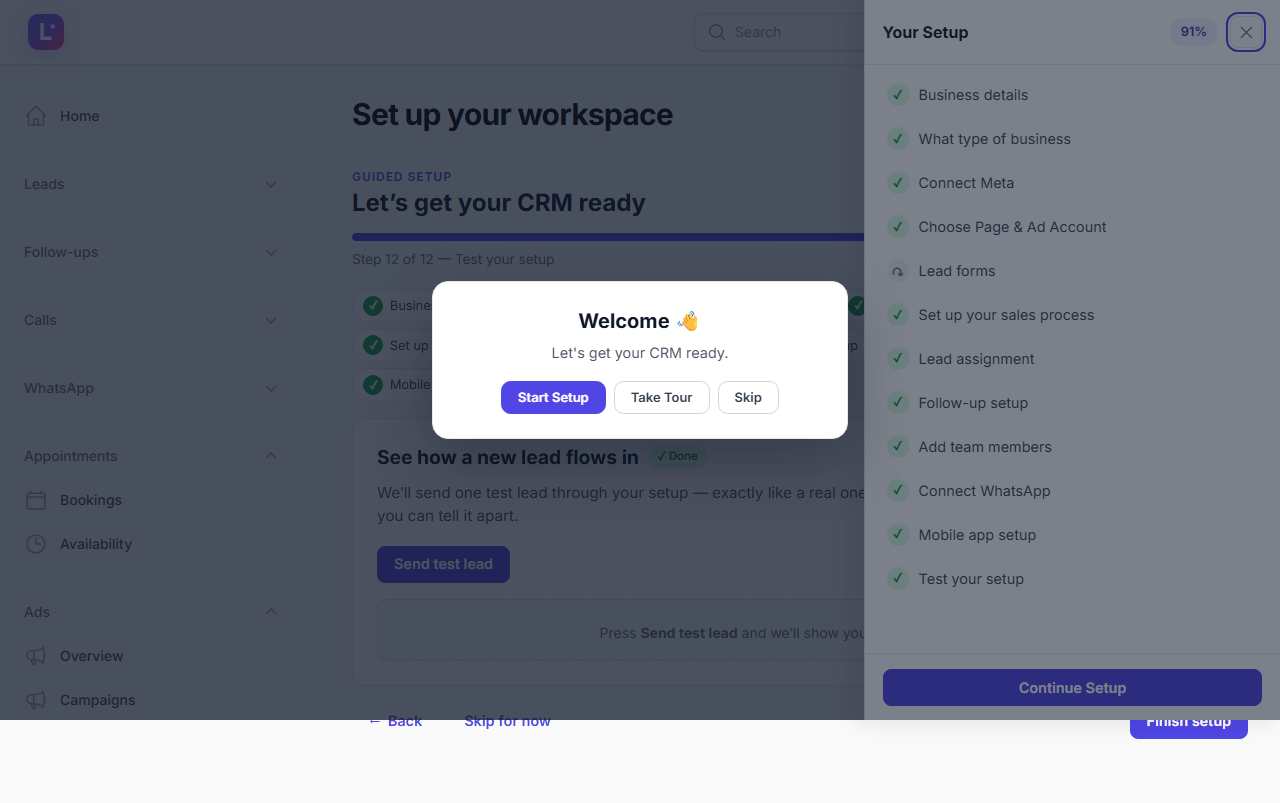
- Step 12 — prove it works: Send test lead creates a real lead tagged Test Lead and runs five checks against your setup. See Test your setup.
3. Finish
- When every step is settled, the wizard shows Setup complete with a checklist of what you configured — skipped steps are marked "(skipped)".
- What happens: the Setup chip disappears from the top bar, the CRM stops redirecting you to the wizard, and Zodiac Tech is notified that your workspace is ready. Our team then prepares your campaigns; you do not need to do anything until we tell you they are ready.
- Expected result: clicking Go to Dashboard takes you to a working CRM with your process, leads area, and team in place. See Finish & go live.
Expected result
- Your workspace has a business profile, an industry template, a working Meta connection with at least one lead form selected, a pipeline with 2+ stages, an assignment mode, a follow-up automation, and at least one successful test lead.
- The top-bar setup chip is gone and the dashboard is yours.
Common mistakes
- Half-finishing a step and closing the browser. Not a problem — setup resumes at the first unsettled step. You never lose what you already completed.
- Logging in with the wrong Facebook account. During Meta connect, choose the Facebook account that manages your Page, not your personal one. See Connect Meta.
- Looking for a step that disappeared. If a step shows ✓ but the chip still shows progress, scroll the drawer — later required steps are still open.
- Confusing the two "Connect Meta" entries. The wizard and Settings → Connections → Lead Source Connections do the same thing; use whichever you prefer. They share one connection.
- Expecting skipped steps to count as done for us. Skips keep you moving, but Zodiac Tech's team still sees them marked "(skipped)" on the client onboarding dashboard.
Troubleshooting
| Symptom | Likely cause | Fix |
|---|---|---|
| Opening the CRM always returns you to the wizard | Setup is not complete and you are owner/admin | Finish or settle the remaining required steps; admins are redirected until completion |
| The Setup chip is missing but setup is not done | Chip hides only when the header row is COMPLETED | Complete the remaining required steps; re-open /admin/guided-setup directly |
| Meta connect failed with "session expired" | The Facebook popup sat open too long | Click Try Again in the step — it restarts the same OAuth flow |
| A required step refuses to advance | Its real condition is not met yet (e.g. no pipeline, no form ticked) | Open the step's guide from the table above — each explains the exact condition |
| You completed a step outside the wizard | Steps are derived from real app state, not clicks | Reopen the wizard — the resolver marks it done automatically |
Do not skip Meta Meta connect, page selection and lead forms are required — leads cannot enter the CRM without them. If your Page has no lead forms yet, that single step (Lead forms) is skippable; recall How a Meta lead becomes a CRM lead once you create the form.
Technical details
- Wizard:
App\Filament\Pages\GuidedSetupat/admin/guided-setup; step UI underresources/views/filament/pages/guided-setup/steps/; top-bar chip + drawer:App\Livewire\GuidedSetupChip,resources/views/filament/guided-setup/chip.blade.phpanddrawer.blade.php. - State:
business_onboarding+business_onboarding_stepstables, driven byApp\Support\OnboardingSteps(frozen 12-step map) andApp\Services\GuidedOnboarding\OnboardingStateResolver(real-state conditions).OnboardingService::sync()re-derives every client step in a transaction and audits changes (guided_onboarding.step_status,guided_onboarding.completed). - Status vocabulary:
NOT_STARTED→IN_PROGRESS→COMPLETED, plusSKIPPED(explicit skip) andBLOCKED(Meta needs attention). A skipped step auto-upgrades toCOMPLETEDonce its real condition is met. - Redirect:
App\Http\Middleware\RedirectToOnboardingsends owner/admins to the wizard until completion; members are never redirected. - For the full life of the state machine see How guided onboarding works.
Related guides
- Business details · Connect Meta · Choose your Page & Ad Account · Lead forms & mapping
- Set up your sales process · Lead assignment & follow-ups · Add team members
- Connect WhatsApp · Mobile app setup · Test your setup · Finish & go live
- Quick start (15 minutes) · Your first login · How guided onboarding works
Was this page helpful?
Thanks — noted. ✦