Mobile app setup
Wizard step 11 — get the Android app onto your team's phones so leads, calls and notifications reach them wherever they are.
Mobile app setup
This is wizard step 11: "Get the app on your team's phones". The Android app is how your sales team works from the field: sees new leads instantly, calls from the CRM, logs calls automatically, and gets push notifications. This step is optional — everything also works in the browser — but for calling and notifications it is where the real value is.
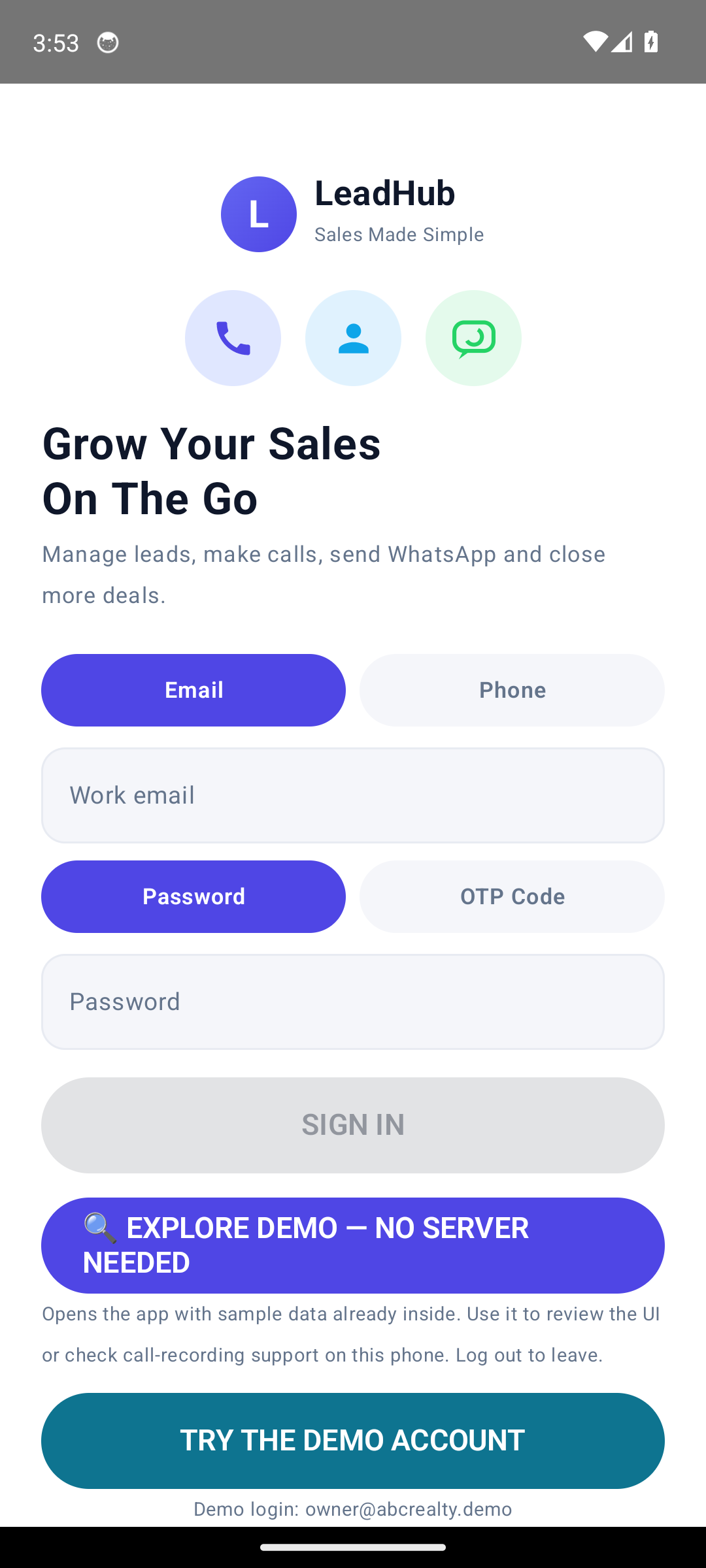
"Try the demo account" is for your own preview only — your team signs in with their real CRM credentials.
Who this is for
- Workspace owners and admins distributing the app.
- Each team member installing it on their own phone.
Difficulty: Easy · Time: ~5 minutes per phone · Prerequisites: team members invited (Add team members); Android phones.
Step by step
1. Download and install
- In the wizard step, click Download Android App — this uses your workspace's download link.
- On each phone: open the link, download the APK and allow installation from the browser when Android asks ("Install unknown apps" for that browser).
- Open LeadHub after install.
- Expected result: the app opens on the login screen.
No Play Store needed The app is distributed as a direct download — your team does not need a Google Play account.
2. Log in
- Sign in with the same credentials the person uses in the browser (email + password, or an OTP where your workspace enables it).
- What happens: the app resolves the workspace from the account and registers the phone as a trusted device.
- Expected result: the Dashboard/Home screen shows their leads.
3. Grant permissions and check device health
- Grant the permissions the app requests:
- Notifications — for push notifications.
- Phone / Call log — for calling and automatic call logging.
- Contacts (optional) — nicer call handling.
- Open Device Health in the app and verify the basics: server reachable, notifications enabled, call tracking allowed. The app also records what calling/recording capabilities the phone supports — honestly, per device (see below).
- Expected result: Device Health shows green/healthy rows and a capability summary for that phone.
4. Confirm the team is set up
-
Back in the wizard, the step shows a team status table per person:
Column Meaning App installed The app was opened and registered this device Logged in The person has signed in on the phone Notifications Push permission granted Call tracking Call log access granted and tracking active -
When the team is on board, click Done — my team has the app.
-
What happens: the step is marked complete for your workspace (a manual confirmation the CRM records).
-
Expected result: the wizard moves to the final step, See how a new lead flows in.
Expected result
- The app is installed and logged in for your team, permissions granted, Device Health healthy.
- New leads ring on their phones; calls made through the app land in the CRM.
Honest notes on call recording
Call recording depends on your phone The app cannot record calls on stock Android 10 and newer — Android blocks it. Recording capability is resolved per device: some phones record natively, some can import recordings made by other apps, and some can only log call metadata (who, when, how long). The CRM shows exactly what each phone can do in Device Health. See Call recording & what your phone supports and How a phone call becomes a CRM record.
- Push notifications work out of the box through the app's Firebase configuration. A workspace can connect its own Firebase project for full control — see Push notifications (FCM).
- The app keeps working offline: calls and updates queue on the phone and sync when connectivity returns (Offline queue & syncing).
Common mistakes
- Blaming the app when Android blocks the install. The phone must allow installing from the download source once.
- Denying the Call log permission. Call tracking silently shows nothing; Device Health flags it.
- Using a personal Gmail to "sign in with Google". The app uses your CRM login — email/password or OTP.
- Assuming every phone records calls. See the honest note above; capability varies by device.
- Forgetting to click "Done". The step is optional and skippable anyway — it settles as SKIPPED and auto-completes when a device registers.
Troubleshooting
| Symptom | Likely cause | Fix |
|---|---|---|
| Cannot install the APK | Installing from unknown sources blocked | Allow the install for that browser in Android settings |
| "Server unreachable" in the app | Wrong workspace URL, or no connectivity | Check the server status row in Device Health; the Advanced → Server URL override exists for custom setups |
| No notifications | Permission denied or battery optimisation killing the app | Re-enable notifications; exclude the app from battery optimisation |
| Calls not appearing in the CRM | Call log permission missing, or calls excluded by filters | Check Device Health; review exclusions in the app |
| Person logged in but sees no leads | No leads assigned yet | Check routing in Lead assignment & follow-ups |
Technical details
- App: Kotlin/Compose, application ID
com.zodiactech.crm(demo flavorcom.zodiactech.crm.demo; internal Kotlin namespacecom.leadhub.sales); talks to the mobile API/api/v1/mobile/*with a device token (90-day TTL). - Registration: login issues a
Devicerow + token; device heartbeats and capability snapshots (devices/capabilities, append-only, 20 snapshots per device) feed the Device Health screen. - Call events: the app scans the call log every ~15 minutes and POSTs batches (
call-events, max 100, idempotent) — directions incoming/outgoing/missed/unknown. - Capability modes:
NATIVE_RECORDING/IMPORTABLE_RECORDING/METADATA_ONLY/UNKNOWN; tracking FULL/LIMITED. No universal recording claim is made anywhere in the product. - The wizard's Done action stores
metadata_json.manual_completeon themobilestep; the resolver also completes the step when any device exists.
Give the app to a client — the URL and the credentials
Everything a client needs is one server URL plus their own workspace login. Use this when you hand the app over for the first time.
1. The one server URL
- Every client on this install uses the same URL:
<your CRM URL>/api/v1/mobile/— there are no per-workspace URLs. - The trailing slash is required — the app rejects any server URL that does not end with
/. - You never have to type it from memory: Super Admin → Android App → Devices shows the exact URL for this install, with a Copy server URL button next to the page title.
- On the phone: login screen → Advanced → paste the URL into Server URL → SAVE SERVER URL.
2. Super Admin cannot log into the app
The mobile API requires an account that belongs to a workspace (owner, manager or member). The Super Admin account has no workspace, so the app rejects it with 403 NO_WORKSPACE — this is expected, not a bug. Log in with a workspace user instead.
3. Steps
- Super Admin → Businesses → create the business + owner (or use an existing one).
- Open that workspace's Mobile App settings (in the workspace CRM: Connections → Mobile App — sign in as the owner, or impersonate from Super Admin) and confirm the login methods you want are enabled. Email + password is on by default.
- In the app: Advanced → paste the server URL → SAVE SERVER URL.
- Log in with that owner's email (or phone) and password.
4. Error triage
| Error shown in the app | What it means | Fix |
|---|---|---|
NO_WORKSPACE |
The account is not linked to a workspace (e.g. the Super Admin) | Log in with a workspace user (owner/manager/member) instead |
INVALID_CREDENTIALS |
Wrong email/phone or password | Re-check and retype; after 5 failed attempts the account locks for about 15 minutes (ACCOUNT_LOCKED) |
ACCOUNT_SUSPENDED |
The user account is suspended | Un-suspend the user in Super Admin → Users, or ask the workspace owner |
WORKSPACE_INACTIVE |
The business is suspended or its subscription has ended | Restore the business / renew the plan in Super Admin → Businesses |
login_method_disabled |
That sign-in method is switched off for the workspace | Enable it in the workspace's Mobile App settings (email + password is on by default) |
| Connection error ("Cannot reach the server at …") | The server URL is wrong, or the server is unreachable | Open <server URL>auth-config in a browser — it must return JSON; confirm PHP 8.4.1+ on the host and that HTTPS is set up |
Related guides
Was this page helpful?
Thanks — noted. ✦