Super Admin overview
What the Super Admin home screen shows, and where every platform section lives.
Super Admin overview
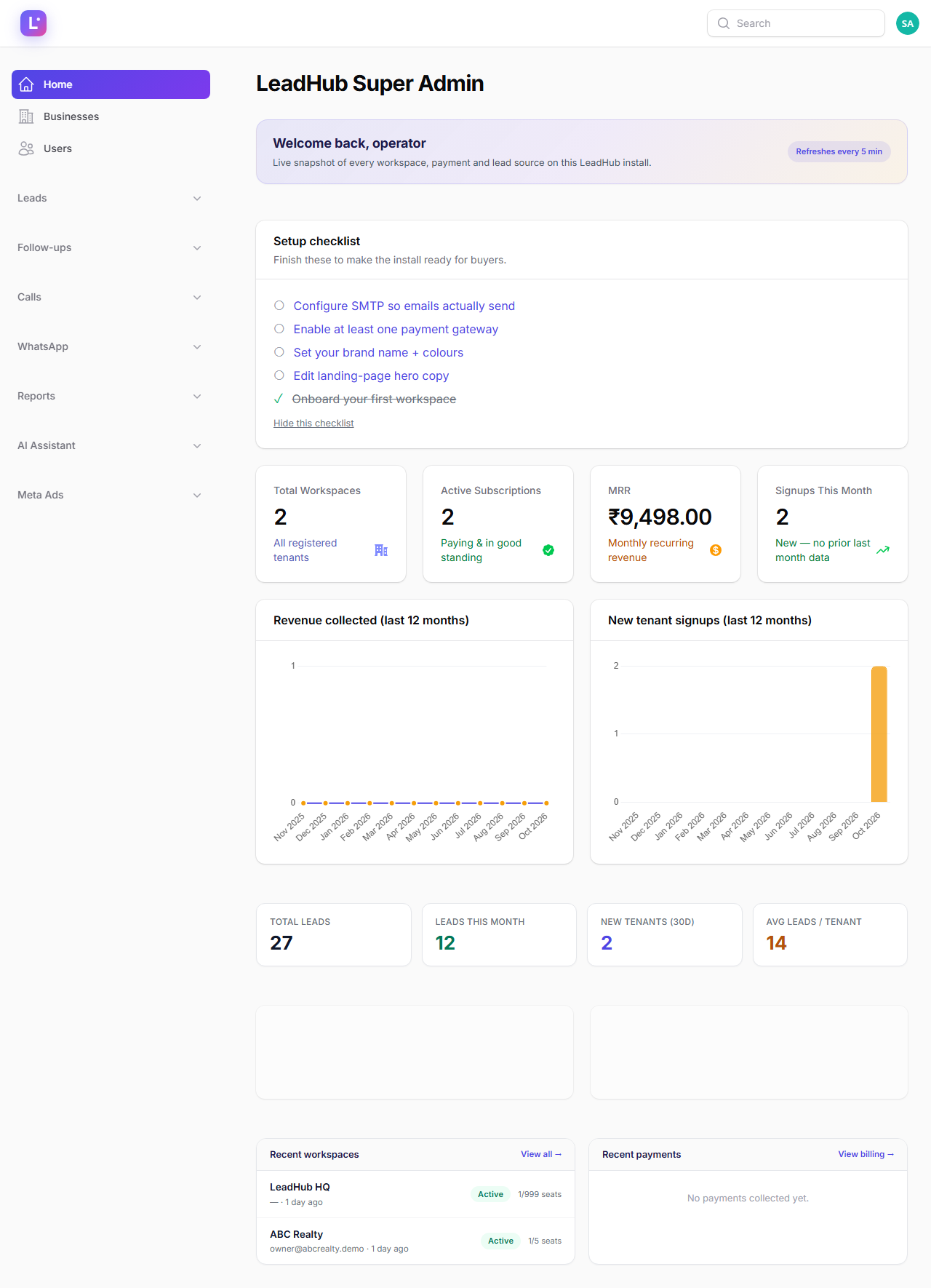
The Super Admin home screen is the control room for the whole platform. It answers two questions in one glance: how is the business doing? and what needs attention first? From here you can also reach every Super Admin section — this page is the map.
Who this is for
Platform owners and operators with the Super Admin role. No technical background is needed to read this page.
- Difficulty: Easy
- Time: 5 min
- Prerequisites: A user account with the Super Admin role, signed in at
/super-admin.
LeadHub HQ is not a client The Super Admin panel is bound to an internal workspace called LeadHub HQ (marker settings.internal.crm_hq in the workspace settings). It never appears in business lists, onboarding dashboards, or billing. You do not manage it like a client workspace.
Step 1 — Read the setup checklist first
At the top of the dashboard is a first-login setup checklist. It tracks five things a brand-new install needs:
| Item | Done when | Goes to |
|---|---|---|
| Configure SMTP so emails actually send | SMTP host is saved | Settings → Script Settings |
| Enable at least one payment gateway | Any gateway toggle is on | /super-admin/billing-settings-page |
| Set your brand name + colours | Branding is saved | Settings → Branding |
| Edit landing-page hero copy | Hero copy is set | /super-admin/landing-page-editor |
| Onboard your first workspace | Any business exists | /super-admin/tenants |
Click any item to jump straight to the screen that fixes it. Once every item is green, dismiss the checklist — it stays dismissed.
Status: not currently implemented. A consolidated "Platform today" widget on the dashboard (businesses, leads/calls today, AI usage, Meta connection health, Android devices). The widget code exists in the codebase but is not placed on the dashboard. For a live platform-health view today, open Settings → System Health and the Meta Ads and Android App sections.
Step 2 — Read the platform KPIs
The SaaS stats cards show:
| Card | What it means |
|---|---|
| Total businesses | Every workspace registered on the platform |
| Active subscriptions | Workspaces in an active subscription state |
| MRR | Monthly recurring revenue (BillingMetricsService::computeMrr()) |
| Signups this month | New workspaces created in the current month, with trend |
Step 3 — Read the charts
Two trend charts sit under the KPI cards:
- MRR trend — monthly recurring revenue over time.
- Tenant signups — how many new workspaces were created each period.
At the bottom of the page:
- Subscription status chart — the split of workspaces by subscription state.
- Lead source mix chart — where platform-wide leads came from.
Step 4 — Use the live feeds
Below the charts, two feeds refresh with real data:
- Recently created workspaces — the newest businesses; each row links to
/super-admin/tenants. - Recent payments — the latest payments recorded on the platform; the feed links to the billing section at
/super-admin/billing.
Step 5 — Know where everything lives
Every Super Admin surface, by sidebar group:
| Sidebar entry | URL | What it is for |
|---|---|---|
| Home | /super-admin |
This dashboard |
| Businesses | /super-admin/tenants |
Create, edit, suspend, impersonate workspaces → Businesses (tenants) |
| Users | /super-admin/users |
Every platform user; reset passwords, suspend, impersonate → Users & agency team |
| Meta Ads → Client onboarding | /super-admin/meta-ads/client-onboarding |
Onboarding pipeline board → Client onboarding dashboard |
| Meta Ads → Agency Team | /super-admin/meta-ads/agency-team |
Agency staff logins and roles → Users & agency team |
| Meta Ads → (overview, campaigns, creatives, QA queue, needs attention…) | /super-admin/meta-ads |
Meta operations console → Agency panel (Meta Ops) |
| Billing | /super-admin/billing |
Billing metrics + commercial billing pages → Billing overview |
| Android App → Devices | /super-admin/android-devices |
Mobile fleet overview → Mobile & app settings |
| Settings | /super-admin/settings |
SMTP, AI, branding, backups, Meta Developer, mobile login → System, SMTP & integrations |
Three panels, three audiences This is the /super-admin panel. Clients work in /admin; Zodiac Tech's Meta-ops staff work in /agency. Same platform, separate doors — see How the platform works.
Expected result
You can read the platform totals and trends at a glance, act on the setup checklist, and navigate to any Super Admin section by URL or sidebar.
Common mistakes
- Looking for a "Platform today" panel. It is not on the dashboard yet; use System Health plus the Meta Ads and Android App sections.
- Expecting client workspaces to include LeadHub HQ. HQ is internal and deliberately hidden from client-facing lists.
- Reading MRR as money collected. MRR is computed from active subscriptions; actual collections are in the billing pages.
- Treating the dashboard stats as real-time. The headline totals are cached for 300 seconds.
Troubleshooting
| Symptom | What to check |
|---|---|
| Charts or totals show nothing on a fresh install | Create your first workspace in Businesses; trends need data to draw |
| Checklist keeps reappearing | Click Dismiss; if it returns after a cache wipe, that is a known behaviour of SetupState.sa_checklist_dismissed |
| Stats look stale after a big import | Wait up to 5 minutes — the headline numbers are cached |
Technical details
- Page:
App\Filament\SuperAdmin\Pages\Dashboard(panelSuperAdminPanelProvider). - Header widgets:
SuperAdminSetupChecklist,SaasStatsOverview,MrrTrendChart,TenantSignupsChart; footer widgets:SubscriptionStatusChart,LeadSourceMixChart. Dashboard::getStats()returnstotal_leads,leads_this_month,new_tenants_30d,avg_leads_per_tenant— queries run across all tenants (withoutGlobalScope('tenant')) and are cached for 300 seconds.PlatformTodayWidgetexists inApp\Filament\SuperAdmin\Widgetsbut is not referenced by any rendered view.- MRR:
App\Services\BillingMetricsService::computeMrr().
Related guides
Was this page helpful?
Thanks — noted. ✦