Client onboarding dashboard
Track every client's guided setup from payment to launch — progress, payments, Meta health and stuck steps.
Client onboarding dashboard
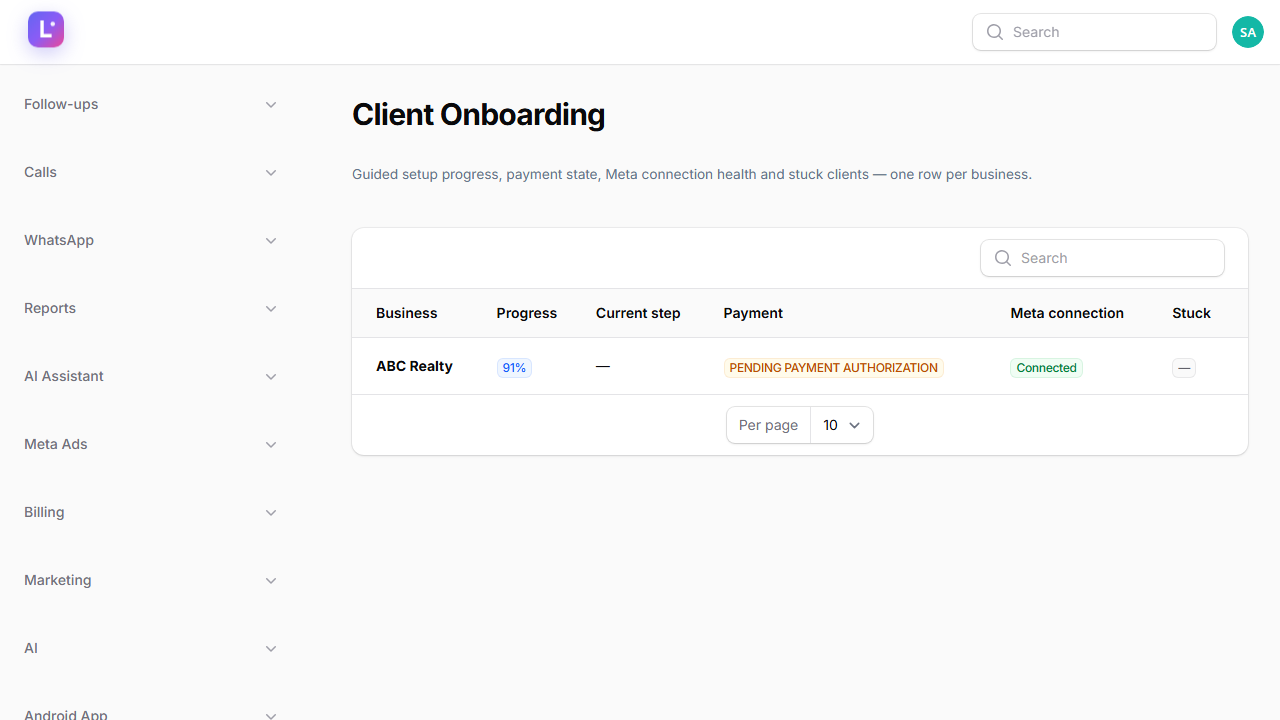
The Client Onboarding board at /super-admin/meta-ads/client-onboarding is the single view of every client's setup. One row per business, one click to the Business 360 detail with both checklists, the payment card and the signed onboarding link.
Who this is for
Super Admins and Meta-ops staff who follow clients through delivery. The board is gated by the meta.setup permission.
- Difficulty: Medium
- Time: 10 min
- Prerequisites: Super Admin access (or the agency permission), and at least one client business created — see Businesses (tenants).
LeadHub HQ never appears here The internal HQ workspace is excluded from the board and its detail page returns 404. Only real clients are tracked.
The board columns
| Column | What it shows |
|---|---|
| Business | Client workspace name |
| Progress | Percentage badge of settled steps, or "Not started" |
| Current step | Human label of the step the client is on (App\Support\OnboardingSteps) |
| Payment | Latest agreement amount and how much has been paid from PAID invoices ("Paid ₹X"), or the agreement status |
| Meta connection | Connected / Needs attention / Not connected, from the client's Meta/Instagram lead-source connection |
| Stuck | ⚠ when a required step has been waiting more than 24 hours |
The stuck flag is automatic A daily sweep (DetectStuckOnboarding, 08:15) marks required client steps that have been unsettled for more than 24 hours and notifies the Super Admins. Each step is flagged at most once per day.
Step 1 — Request action on a stuck client
- Find the stuck row (⚠ in the Stuck column).
- Click Request Action. A modal opens with a pre-filled message for the client.
- Adjust the wording if needed and confirm. The client's current step moves to Waiting for client and the request is recorded.
Use this when a client has gone quiet on a required step. It is the polite, traceable nudge — the client sees the request in their guided setup.
Step 2 — Open the Business 360 detail
Click the row (or the Onboarding action from the Businesses list) to open /super-admin/meta-ads/client-onboarding/{tenant}. The detail page has five blocks:
Client checklist (the 12 steps)
Every step shows a derived status: Completed / In progress / Skipped / Blocked / Waiting for client / Not started. The client's 12 steps, in order:
- Business details (required)
- What type of business (required)
- Connect Meta (required)
- Choose Page & Ad Account (required)
- Lead forms (required, skippable)
- Set up your sales process (required)
- Lead assignment (required)
- Follow-up setup (required)
- Add team members (optional, skippable)
- Connect WhatsApp (optional, skippable)
- Mobile app setup (optional, skippable)
- Test your setup (required, skippable)
Each step also offers a Request Client Action button, and a required step that has been unsettled for over 24 hours shows the stuck flag here too.
Internal Zodiac Tech checklist (9 steps)
The internal work is tracked separately, with complete / reopen toggles:
| Order | Internal step | Owner |
|---|---|---|
| 1 | CRM configuration | Super Admin |
| 2 | Sales process review | Super Admin |
| 3 | Lead routing review | Super Admin |
| 4 | Campaign setup | Ads Specialist |
| 5 | Creative | Ads Specialist |
| 6 | Tracking | Ads Specialist |
| 7 | QA | Super Admin |
| 8 | Launch | Super Admin |
| 9 | Monitoring | Super Admin |
Payment card
A read-only summary pulled from commercial billing — the client's agreement and payment position. It never offers a "collect payment" button; collections are handled from the billing pages.
Onboarding link
Generate a signed onboarding link for the client. The link is valid for 72 hours and lands the client directly in their guided setup (/guided-onboarding/{tenant}). Generating a new link immediately revokes the previous one.
Launch-readiness badge
The page shows a launch-readiness indicator: ready when all required client steps are settled and all 9 internal steps are Completed. Work through the Client delivery playbook before treating this as a green light to go live.
Expected result
You can see at a glance which clients are progressing, who owes you a step, who has paid, whose Meta connection is unhealthy — and you can nudge, generate a link, or tick off internal work without leaving the page.
Common mistakes
- Toggling internal steps just to make a client "ready". The badge is a gate for launch; fill the work first.
- Re-sending a link without telling the client. Regenerating revokes the old link instantly — if the client has the old one open, it dies.
- Assuming progress % means paid. Progress is setup completion; the Payment column is money.
- Requesting action on every step at once. One clear request per blocked step reads better for the client.
- Looking for the Meta connection status elsewhere. It is derived from the client's
meta/instagramlead-source connection — if it says Not connected, run the client through Connect Meta.
Troubleshooting
| Symptom | What to check |
|---|---|
| Client says the link expired | Links last 72 hours; generate a fresh one (this revokes the old) |
| Board shows a business you expect but HQ missing | HQ is intentionally excluded |
| "Request Action" missing on a row | It appears only when the row is stuck |
| Progress stuck at the same % | Open the detail page — the step statuses tell you which step is waiting |
| Client completed a step but the board lags | Refresh; statuses are derived on read, not cached |
Technical details
- Board:
App\Filament\SuperAdmin\Pages\ClientOnboarding(slugmeta-ads/client-onboarding, group "Meta Ads", permissionmeta.setup). - Detail:
App\Filament\SuperAdmin\Pages\ClientOnboardingDetail(routemeta-ads.client-onboarding.detail, hidden from nav, 404 for HQ). - Step definitions (frozen):
App\Support\OnboardingSteps—CLIENT_STEPS(12) andINTERNAL_STEPS(9). - Services:
App\Services\GuidedOnboarding\OnboardingService(completeInternalStep,reopenInternalStep,requestClientAction); links viaOnboardingLinkService(TTL 72h, rotating nonce intenants.settings.onboarding.link_nonce, auditguided_onboarding.link_issued). - Tables:
business_onboarding,business_onboarding_steps. - Sweep:
App\Jobs\GuidedOnboarding\DetectStuckOnboarding— daily 08:15, notifies viaOnboardingNotifier::stuckTenant. - Client wizard:
/admin/guided-setup— see How guided onboarding works.
Related guides
Was this page helpful?
Thanks — noted. ✦