Message templates
Create WhatsApp message templates in the CRM, map variables to your lead data, and get them approved by Meta — statuses are always Meta-authoritative.
Message templates
WhatsApp does not allow businesses to send arbitrary text to people who have not messaged them recently — outbound messages outside the 24-hour window must use a template that Meta has approved in advance. This page covers creating templates in the CRM, mapping their variables, submitting them to Meta, and reading their real status.
If you have not connected WhatsApp yet, start with WhatsApp Business API.
Who this is for
- Admin or Manager who owns the messaging content.
- Super Admin helping a business get its first templates live.
Difficulty: Medium · Time: about 15 minutes per template · Prerequisites:
- WhatsApp connected (Settings → Connections → WhatsApp).
- The
whatsapp.templates.managepermission (Admins have it; Managers can be granted it).
Step 1 — Create the template
- Open WhatsApp → Templates and click New template.
- The editor has six sections, with a live WhatsApp-style bubble preview on the side:
| Section | What you set |
|---|---|
| 1. Name | The template's Meta name — lowercase letters, numbers and underscores; the field auto-converts what you type (Str::slug with _) |
| 2. Category | marketing, utility or authentication — this changes how Meta reviews it and how it is billed |
| 3. Language | en_US, en_GB, hi_IN, en or hi |
| 4. Header | Optional header (text or media slot) |
| 5. Body | The message text with {{1}}, {{2}}-style placeholders |
| 6. Buttons | Quick reply / URL / phone number / Flow buttons (up to 10 total) |
Category honesty matters Meta charges and reviews marketing templates more strictly than utility ones. Choose the category that truthfully describes the message — misclassification is a common cause of rejection.
Step 2 — Map the variables
Each body placeholder ({{1}}, {{2}}, …) needs a data token that tells the CRM what to insert at send time. Pick from the built-in tokens:
| Group | Tokens |
|---|---|
| Lead | lead.first_name, lead.last_name, lead.full_name, lead.phone, lead.email, lead.company, lead.source, lead.stage, lead.owner_name |
| Business | business.name, business.phone, business.email, business.website, business.booking_url, business.whatsapp_community_url |
| Appointment | appointment.date, appointment.time, appointment.location, appointment.link |
| Offer | offer.description, offer.expiry, offer.url |
The mapping must line up with the body exactly. If your body has three placeholders you must map exactly three variables, or the CRM blocks submission with an error like:
Variable mapping must match the body placeholders exactly (found 2 placeholder(s), 3 mapping(s)).
Step 3 — Submit to Meta
- Save the template. It starts as Not submitted (local only).
- On the row, click Submit to Meta. The CRM builds Meta's payload (name, category, language, body, buttons) and pushes it to your WABA.
- The status becomes Pending Meta Review. Meta's review usually takes minutes to a day.
Submission failures are not rejections If the HTTP call to Meta fails (network, token), the template keeps its current status and the error payload is stored for you to read — fix the problem and click Submit to Meta again. A true Meta rejection appears as Rejected by Meta with the reason.
Step 4 — Manage statuses and edits
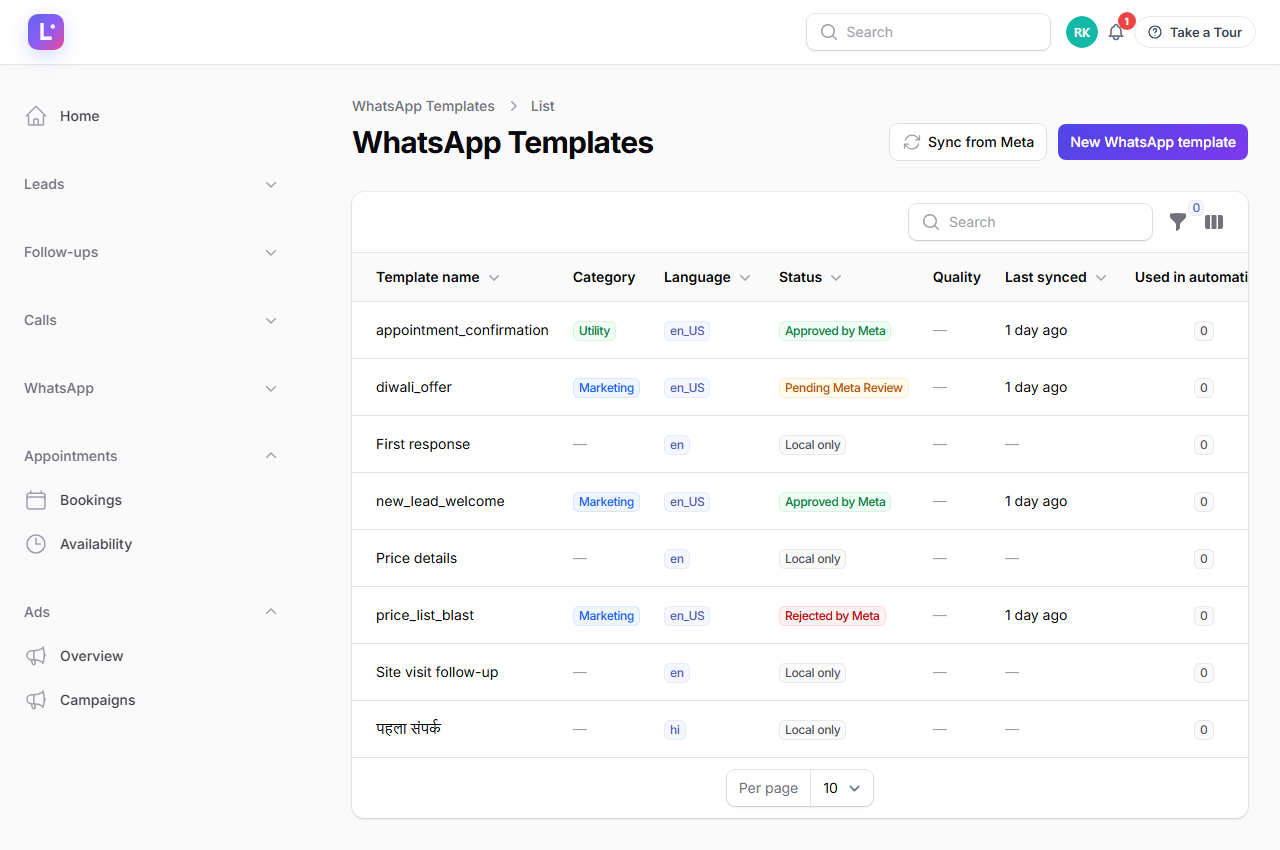
Statuses are Meta-authoritative — the CRM never guesses. Click Sync Templates on the connection page (or the templates page) to re-pull the list.
| Status | Meaning |
|---|---|
| Not submitted | Draft kept locally; Meta knows nothing about it |
| Pending Meta Review | Submitted, awaiting Meta's decision |
| Approved by Meta | Usable for sending (inside automations and outside the 24h window) |
| Rejected by Meta | Meta declined it; read the reason and edit/resubmit |
| Disabled by Meta | Meta disabled it (usually after quality issues) |
| Paused by Meta | Temporarily paused by Meta |
| Local only | Legacy template created before the Meta-managed flow; may still be sent if previously usable |
Row actions:
- Submit to Meta — shown while unsubmitted, and again after a rejection (resubmission).
- Delete from Meta — removes the template on Meta's side.
- Delete — removes the local row.
Same name, different language If a template with the same name already exists on the WABA in a different language, the CRM skips that sync row and logs it — Meta treats name+language as the template identity, so the two can coexist, but the page shows one row per Meta template ID.
Expected result
The template shows Approved by Meta, and it becomes selectable in the send_whatsapp automation action and usable for out-of-window sends. A send test inside the 24h window can safely use free-form text; a template send works any time.
Common mistakes
- Uppercase or spaces in the name. Only
a–z,0–9and_are accepted. - Mapping mismatch — placeholders and mapped variables must be equal in count and position.
- More than 2 URL buttons or more than 1 phone button is rejected by Meta's platform rules; the CRM blocks more than 10 buttons in total.
- Editing an approved template's body. Meta treats edits to approved templates as new reviews; the CRM re-submits for you.
- Deleting an approved template that automations use — automations will then fail with
TEMPLATE_UNAVAILABLE; see WhatsApp automations.
Troubleshooting
| Symptom | Likely cause | Fix |
|---|---|---|
| Submit blocked with "variable mapping must match" | Placeholder count vs mapping count differ | Fix the body or the mapping until they match |
| Status stays Not submitted after clicking Submit | HTTP failure talking to Meta (token/network) | Read the stored error payload; fix connectivity/credentials; resubmit |
| Status Rejected by Meta | Content or category issue flagged by Meta | Read Meta's reason; adjust content; resubmit from the row |
| Template approved on Meta but shows old status | Local cache not refreshed | Click Sync Templates |
Automation fails with TEMPLATE_NOT_APPROVED |
Template not approved yet (or disabled/paused) | Wait for approval or resubmit; re-check the status |
Technical details
- Service:
App\Services\WhatsApp\WhatsAppTemplateService(sync(),submit(),statusLabel(),usableForSending()). - Table:
whatsapp_templates(keyed to Meta bymeta_template_id). - Sync pulls up to 100 templates per page, to a maximum of 50 pages, and only overwrites fields Meta owns (status, category, quality, language).
- Validation rules (server-side, exact): name
^[a-z0-9_]{1,512}$; categorymarketing|utility|authentication; language^[a-z]{2}(_[A-Z]{2})?$; body required; buttons max 10 (max 2 URL, max 1 phone number); button typesQUICK_REPLY | URL | PHONE_NUMBER | FLOW. - UI resource:
WhatsAppTemplateResourceunder the WhatsApp navigation group. Editing requireswhatsapp.templates.manage; viewing only needs theleads.viewtier.
Related guides
Was this page helpful?
Thanks — noted. ✦